
How to Use and Restore Webflow's Automatic Backup Feature

When creating a website, have you ever accidentally deleted a page or overwritten a file while coding HTML? Webflow comes equipped with an automatic backup feature to prepare for unexpected data loss. This article will explain in detail the automatic backup feature, how to use it, and how to restore data that has been accidentally deleted.
What is the Automatic Backup Feature?
Webflow's automatic backup feature is available for allSite Plans(Starter, Basic, CMS, Business, Enterprise). Your site data is automatically saved regularly, so you can revert to a previous version even if you accidentally delete or modify data.
How to Check Automatic Backups
We will clearly explain the specific steps for checking Webflow's automatic backup feature.
1. Click Site settings

2. Click the Backups tab

Clicking the Backups tab will display a list of past automatic backups.
Automatic Backup Timing
Restore points are automatically generated on the 50th auto-save or when restoring a previous version. You can also create backups manually.
How to Create a Manual Backup
When coordinating team work or performing updates safely, creating manual backups is recommended over relying solely on automatic backups. Here, we will explain in detail how to create a manual backup in Webflow.
1. Click Designer
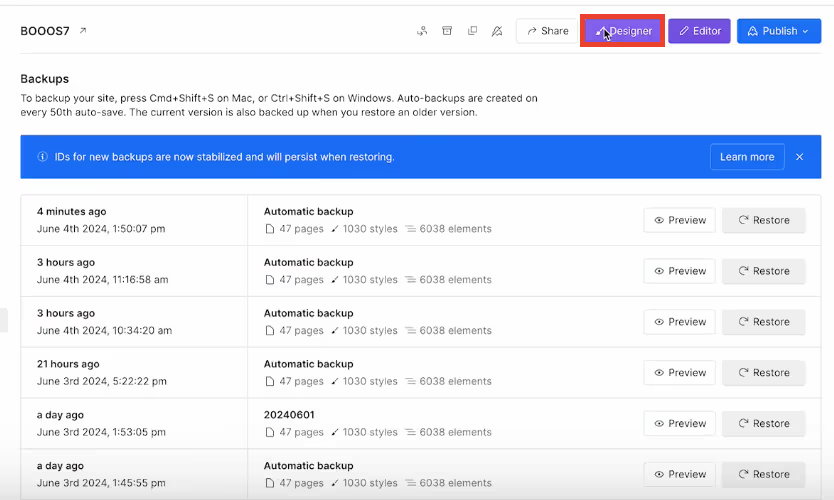
Click "Designer" in the upper right corner of the screen.
2. Display "Save backup"
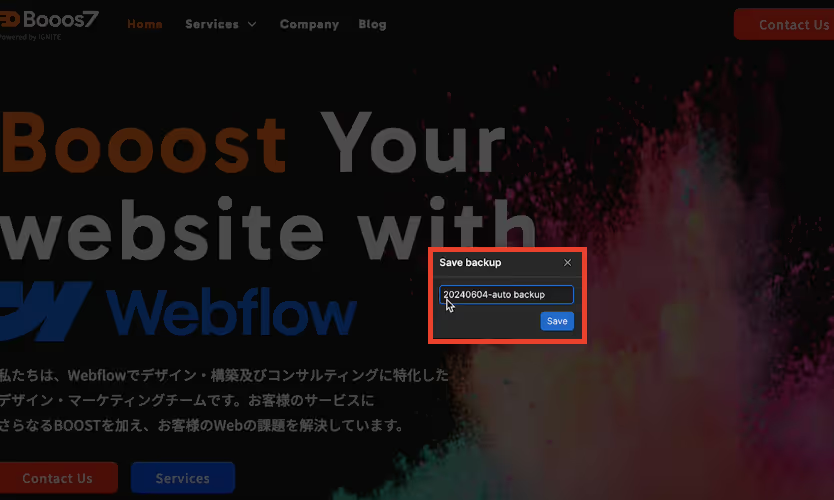
On the Designer screen, press command+shift+S (Mac) or control+shift+S (Windows) to display the "Save backup" window. Enter any name in the description and click Save. (For this example, we've used "20240604-auto backup" as the list name.)
3. Check in Backups
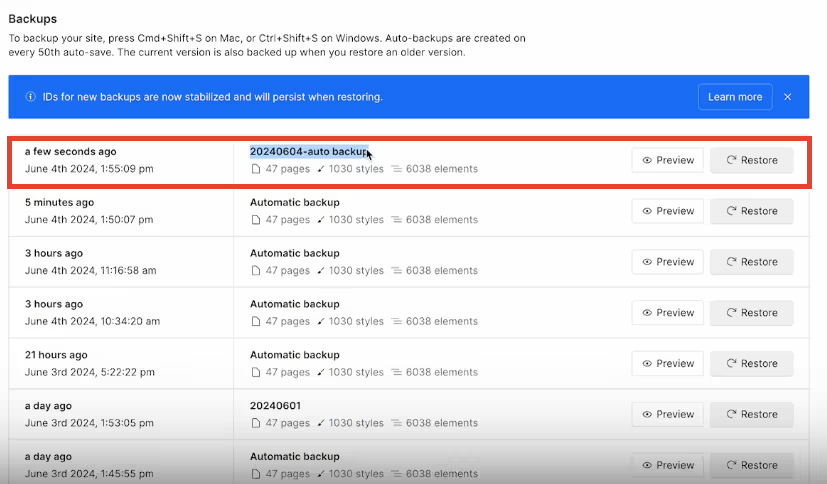
If you open the Backups tab from Site settings again, just as you would to check automatic backups, you will see that the manually created backup list has been added.
How to Specifically Check Backups During Work
Next, we will explain how to confirm that a backup has actually been created when you perform one during your work.
1. Check auto-save

If the "green checkmark" in the image is displayed, it means auto-save is currently active.
2. Perform a backup

For example, if you delete "business" from "Grow your business." on the site, the icon in the upper right corner of the screen will change from a checkmark to a data-saving icon. After a few seconds, it will revert to the checkmark, indicating that the backup has been completed.
3. Take an automatic backup
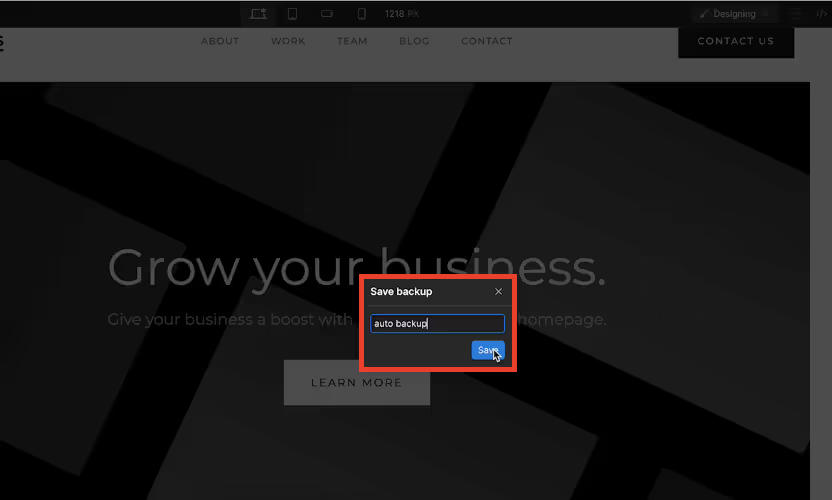
Take an automatic backup with command+shift+S and check the list in Backups.
(For this example, we've used "auto backup" as the list name.)
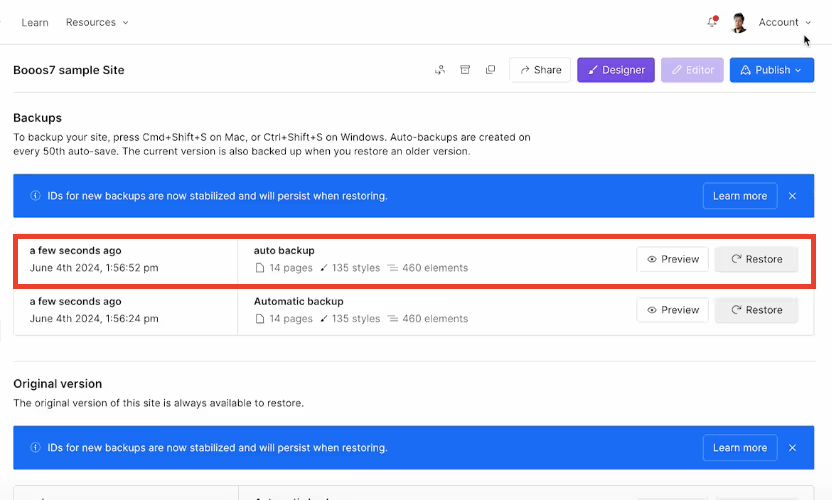
When you check the list of backups, you will see the "auto backup" list from earlier.
How to Restore Accidentally Deleted Data
In the event that you accidentally delete data and cannot undo it, we will show you how to restore it using a backup.
1. Confirm the data you want to restore in the backup list
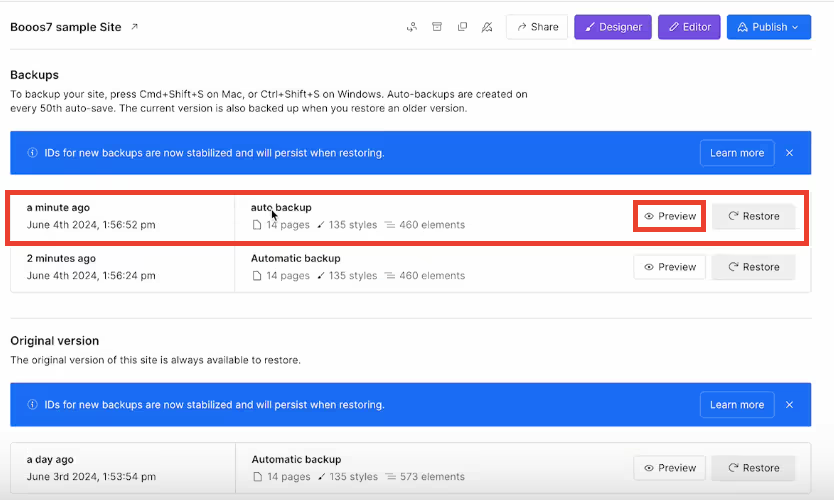
Open the Backups tab in Site Settings, select the backup list from before the accidental deletion, and click Preview.
2. Restore the backup of the data you want to recover
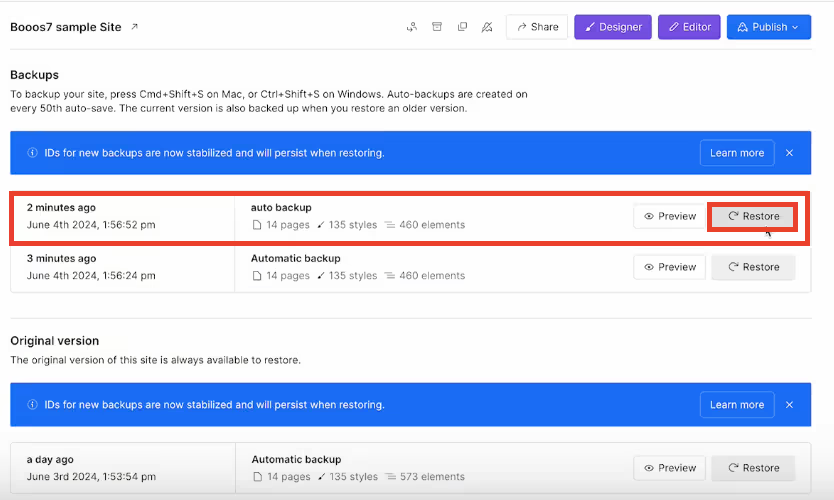
After confirming the deleted data in the preview, click Restore to recover the accidentally deleted data.
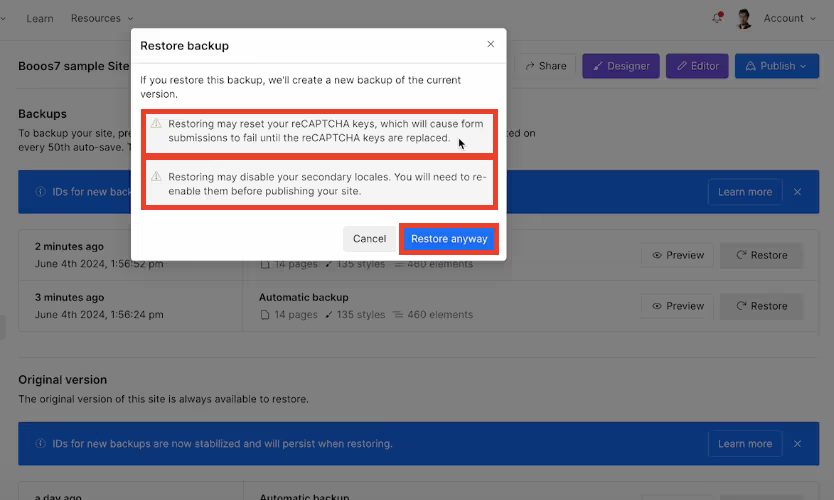
When you click Restore, two warning messages will appear. Please review their content before proceeding. The warnings are as follows:
⚠︎Restoring this backup will create a new backup of your current version.
⚠︎Restoring may reset your reCAPTCHA key, causing form submissions to fail until the reCAPTCHA key is replaced.
If there are no issues with the warnings, click "Restore anyway."
3. Confirm in the backup list

Once successfully restored, your site will revert to the state of the backup before the data was deleted.
Four Important Considerations for Automatic Backups
While automatic backups offer many conveniences, there are also a few points to be aware of.
CMS Collections and Collection Item IDs
If you are currently using API calls or third-party connections that rely on item IDs in your managed CMS collections, restoring a past backup may reset the item IDs, potentially breaking previous API calls and third-party connections.
Therefore, you will need to reconnect API calls and third-party connections to the restored items.
reCAPTCHA Key
Restoring may also reset your reCAPTCHA key, so please reconfigure it if necessary.
Comments
Comments are retained when a site is restored from a backup. However, if the elements to which comments were originally attached are not included in the backup, some comments may appear out of context. Comments for elements that no longer exist will be moved to their parent or body elements.
Locales
When restoring a site from a backup, if the backup contains more locales than are currently configured for your site, publishing for all locales will be automatically disabled. After restoration, you will need to re-enable the necessary locales. This can be done within the scope of your Localization Add-on plan.
For other important considerations, please refer to the following website for details. Understanding these points before using the backup feature can help you avoid issues. Be sure to read through them. The article below is in English, so please use a translation tool to convert it to Japanese and read it.
Save and restore backups - Webflow University Documentation
Summary
Understand the Considerations and Effectively Utilize Automatic Backups
Webflow's automatic backup feature is crucial for significantly reducing the risk of data loss during website creation. While this feature offers many conveniences, there are also points to be aware of. Use this article as a guide to maximize the benefits of automatic backups.
If it's difficult for your company to handle Webflow website development in-house,consider hiring a production companyto assist you.
If you are unsure how to use the automatic backup feature introduced in this article, please feel free to contact us.
Booost is a web development service specializing in the no-code tool "Webflow."
We maximize your website's customer acquisition power through three optimizations: design, marketing, and translation.

