
How to Export a Website Built with Webflow as an HTML File

This guide explains how to export a website built with Webflow as an HTML file, upload the code to a server, and use it for WordPress or static pages.
Code export functionality requires a paid Workspace.
First, there are a few things to keep in mind before exporting your code.Webflow Pricing PlansWhile there is a free plan, it does not include the code export feature. Code export is only available with a paid plan, so please be aware if you are using the free plan.
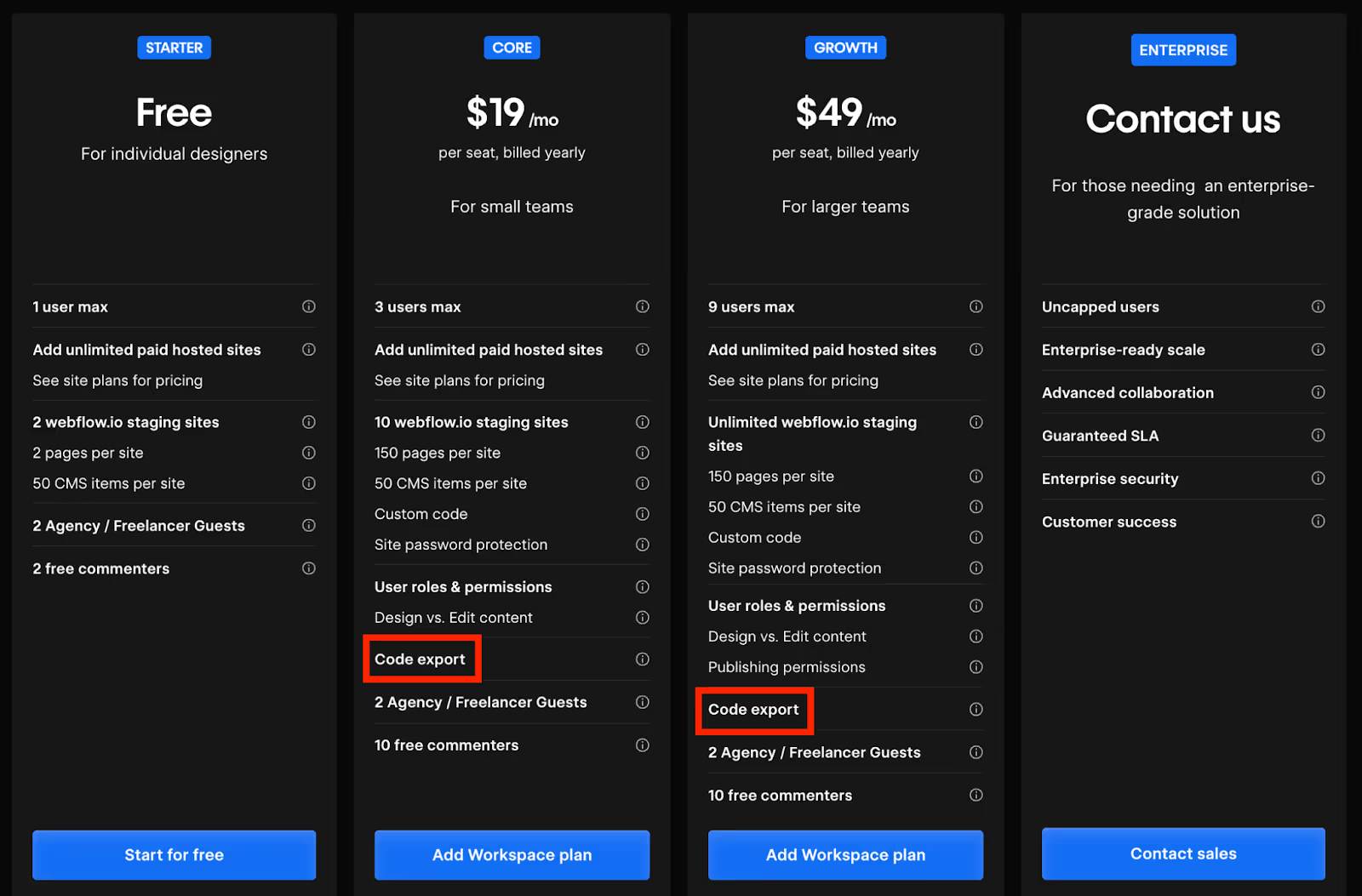
Reference:Webflow Pricing Page
Export Process
The steps to export your code are outlined below.
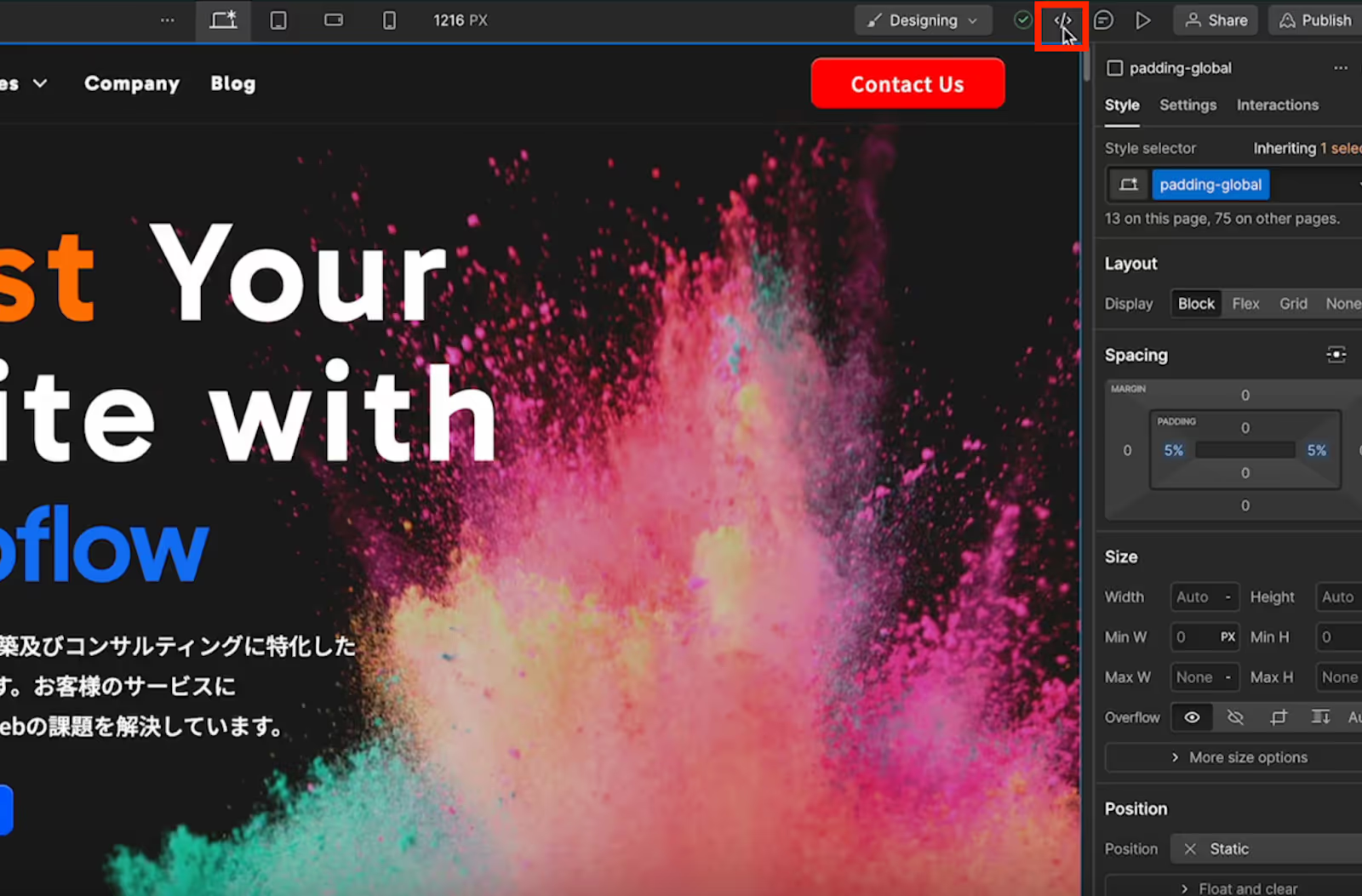
1. Load the code
Click the "Export Code" icon at the top of the Designer screen.
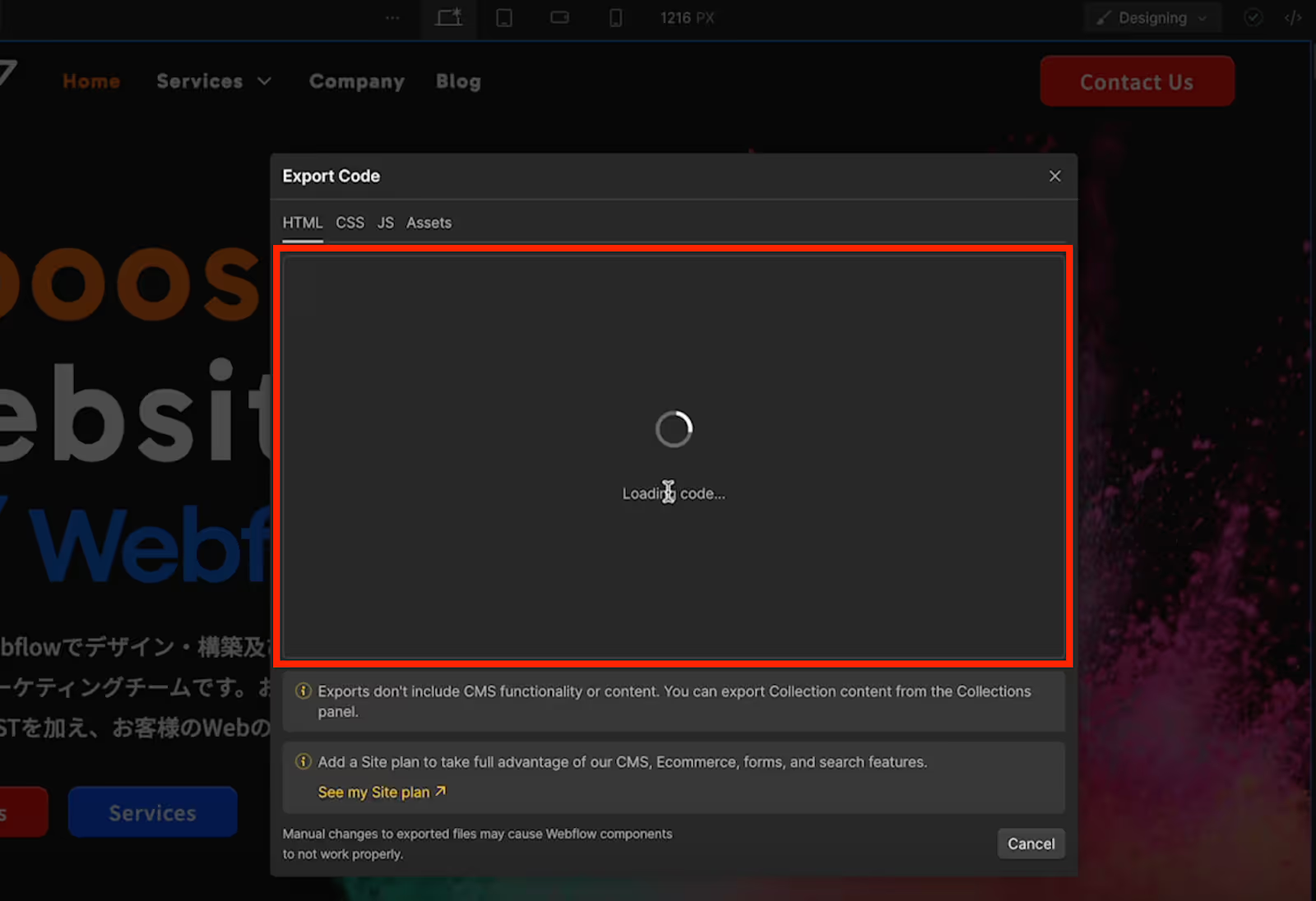
While the code is loading, a "Loading code" screen will appear, so please wait a moment. It may take several minutes depending on the number of pages and amount of content.
2. Download the code
Once the code has finished loading, click the blue "Prepare Zip" button. Please wait until the Zip file is ready for download.
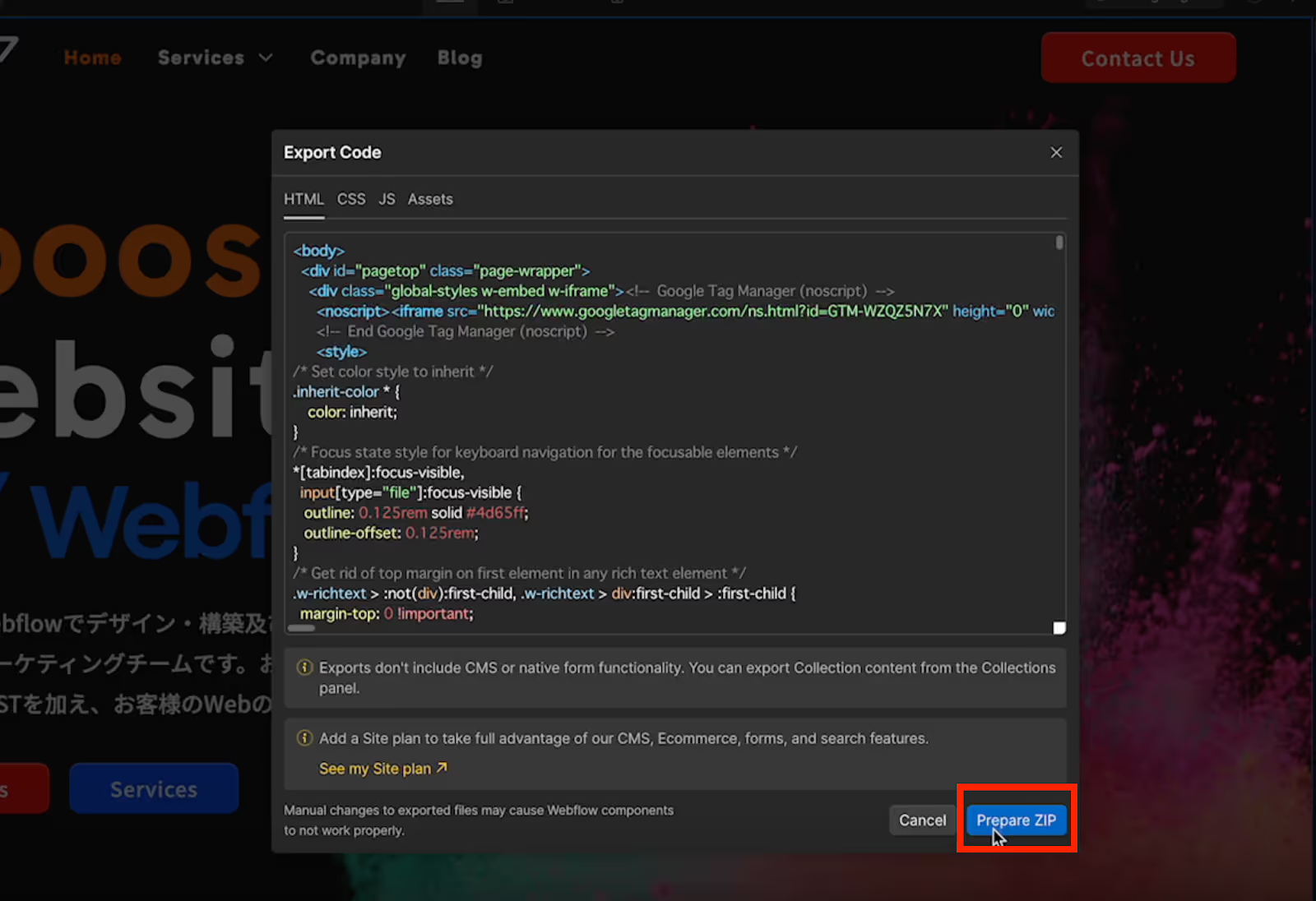
Once the button changes to "Download Zip," click it to download the code.

After Code Export is Complete
The downloaded folder contains a complete set of all files, including the HTML files for the pages you created, images, and CSS. If you open index.html in a browser, it will display exactly as it was built in Webflow. Booos7 also allows you to export an external tool called Relume. Additionally, hover trigger animations and other elements are exported as they are.
Data built with CMS cannot be downloaded.
Since data built with CMS cannot be downloaded using the steps above, we will explain an alternative method.
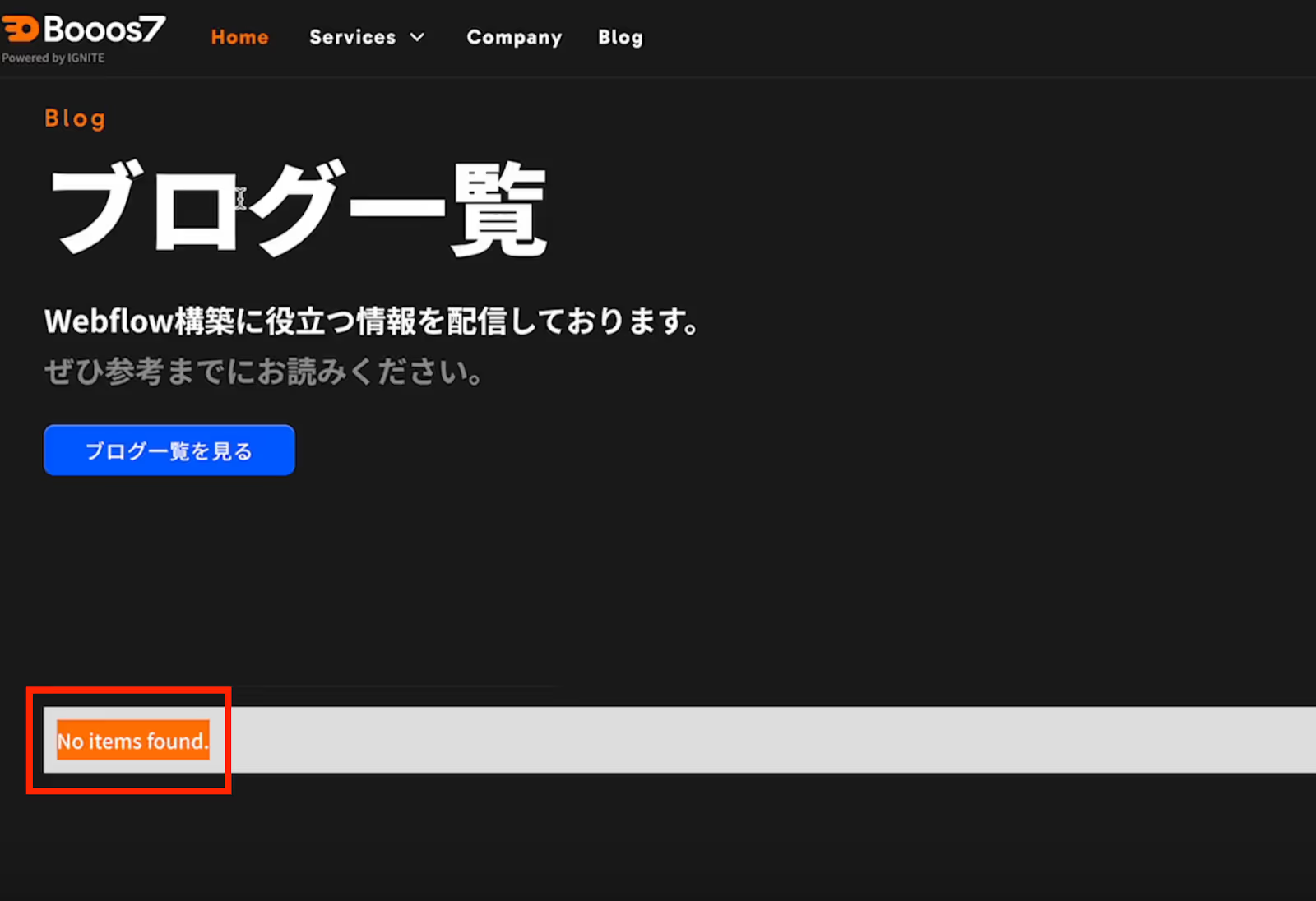
For data built with CMS, download a CSV from the CMS Collection.
Content created in CMS Collections cannot be downloaded via code export.
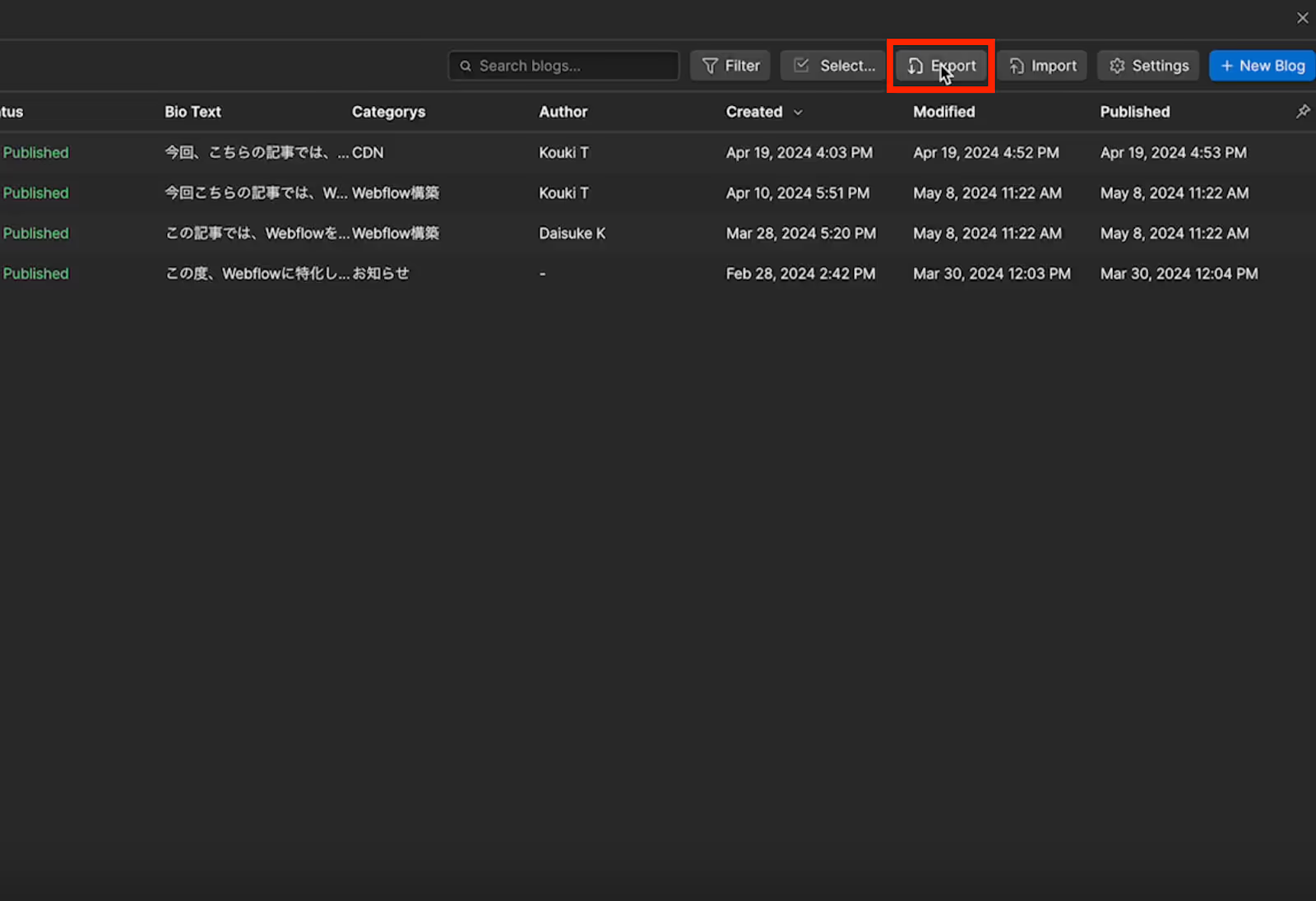
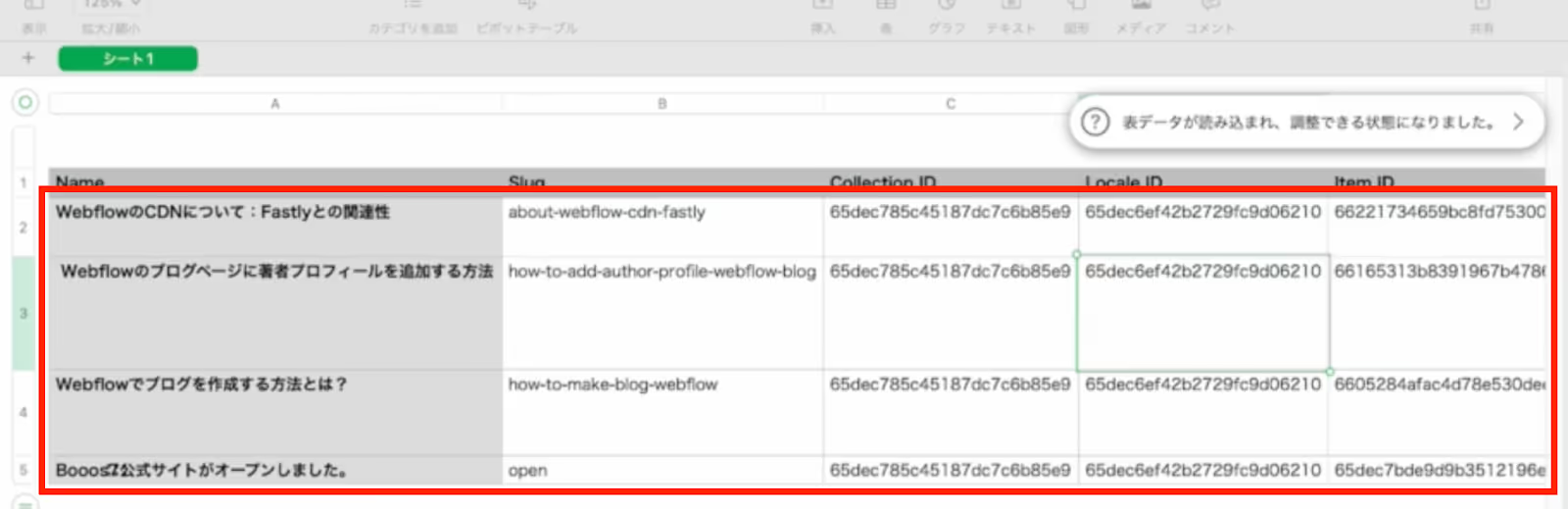
If you are using CMS forblog posts,etc., please export from the Designer > CMS Collection list page and download the CSV file.
Customize for WordPress with an editor tool
Using an editor tool, you can take the downloaded files andWordPresscustomize them into a theme for WordPress, or simply upload them to a server for use, among other various methods.
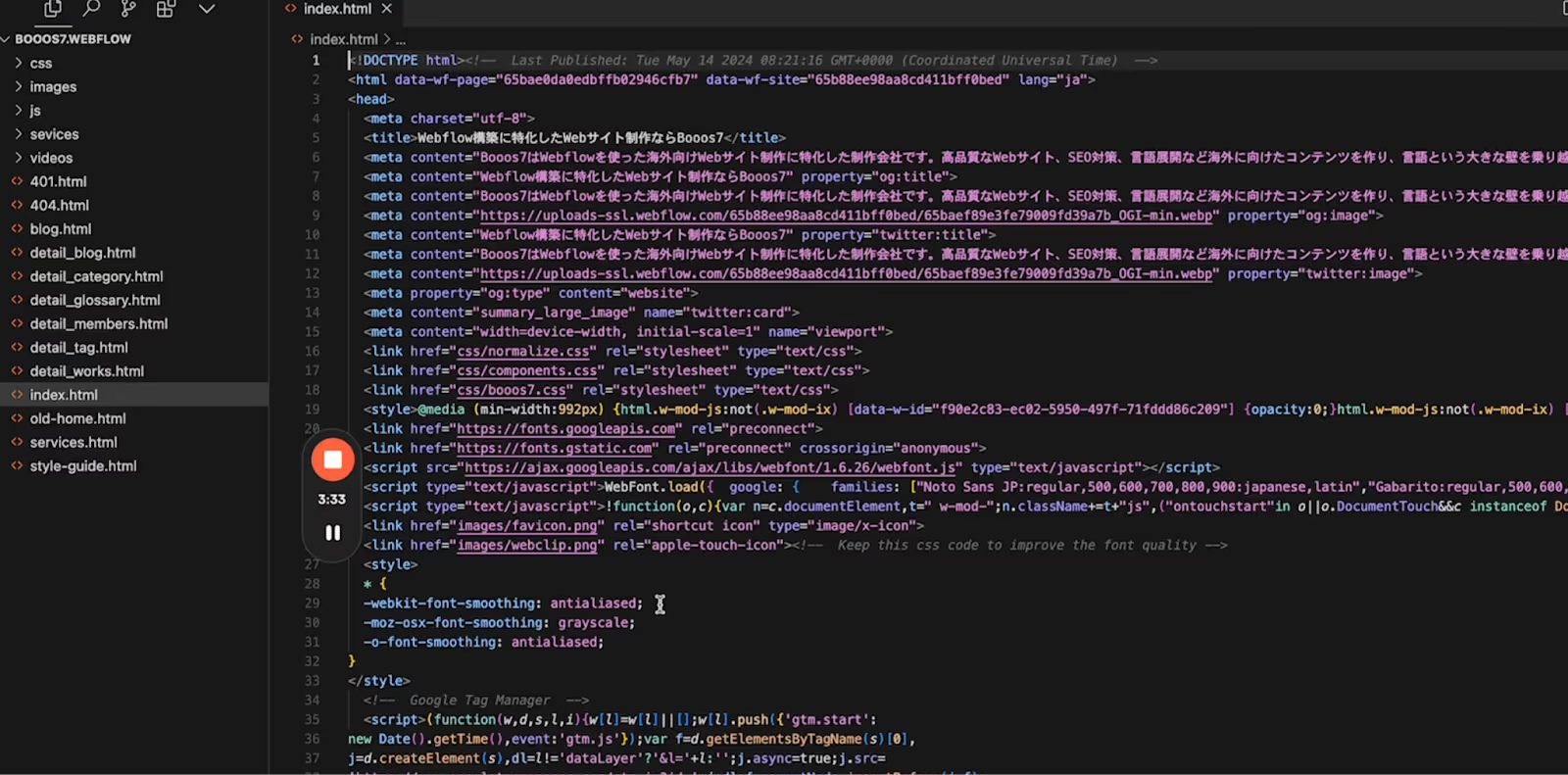
Important Notes
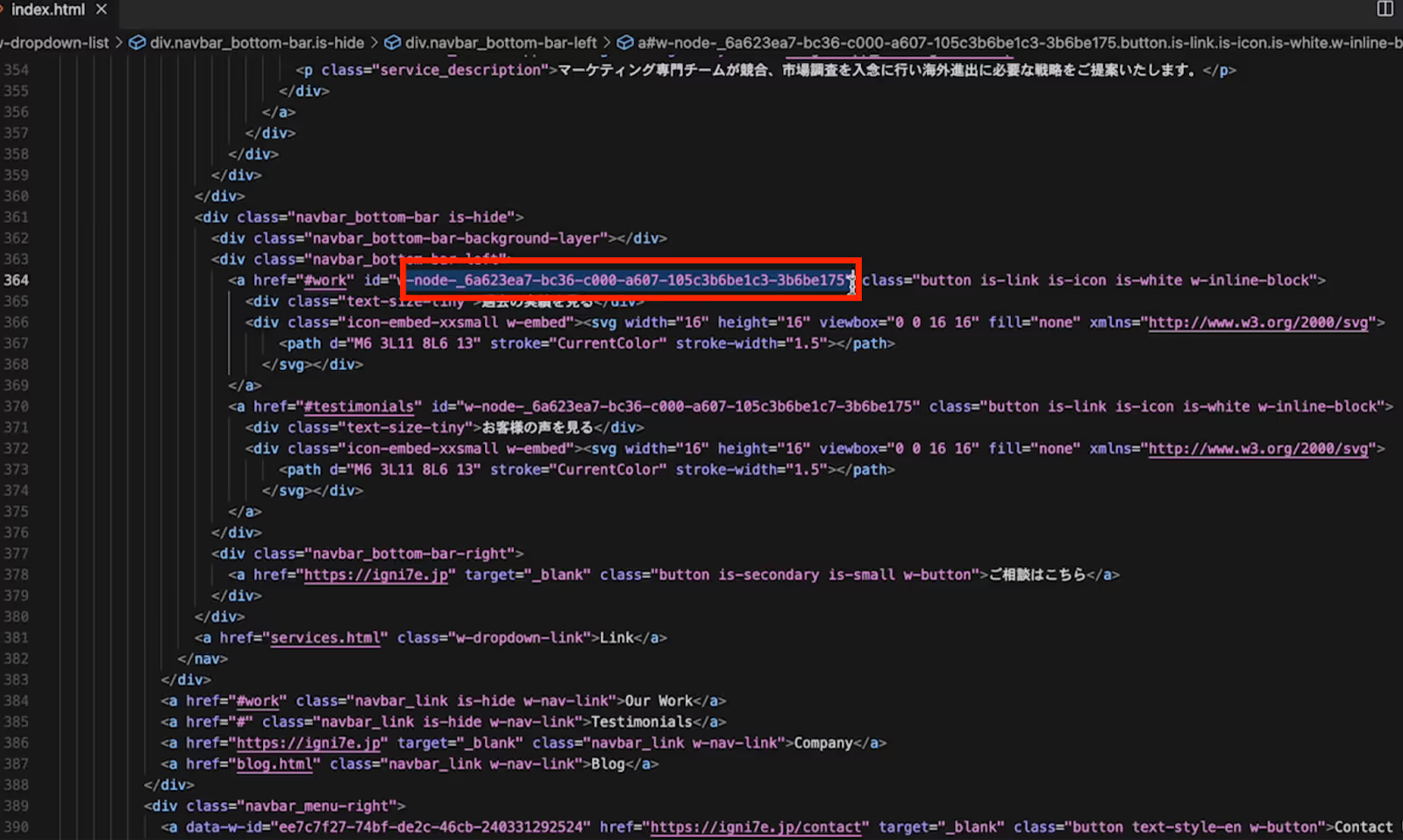
The exported code includes tags and IDs for animations. If these are accidentally deleted, scroll animations and hover animations implemented in Webflow may stop working.
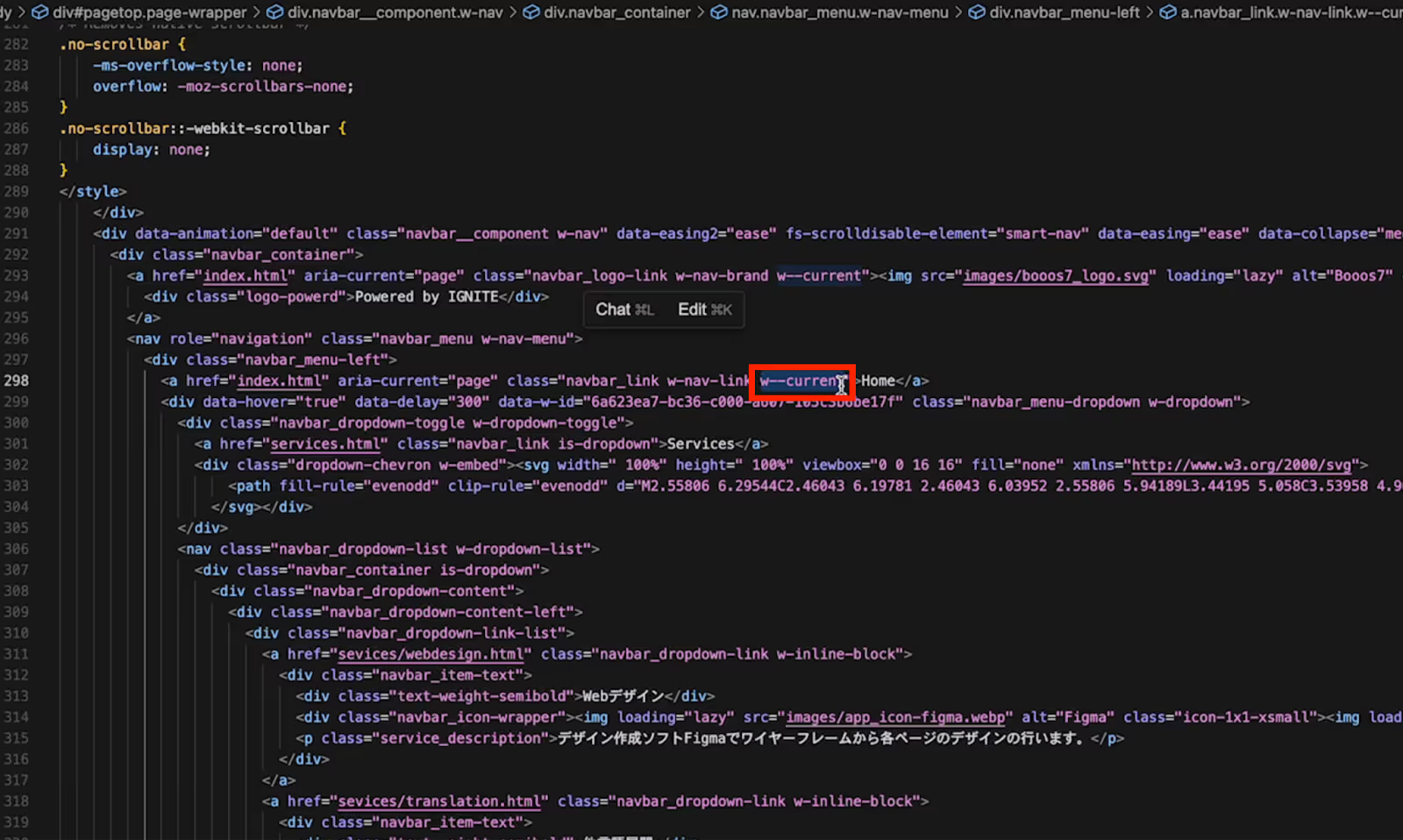
The class name "W-current" is used to change text color, so it must be deleted when used as a template.
Additionally, when using SVG and WebP files with WordPress, separate settings are required. Please proceed with your work after configuring these settings in functions.php or with plugins. WordPress setup methods vary, so please implement it using the method you find easiest.
This concludes the series of steps for exporting a website built with Webflow as code.
Use the export feature to efficiently leverage your content on other platforms.
There are several important points to note, such as the requirement for a paid Workspace to use the export feature, and the need to export CMS Collection data separately as a CSV. While the exported code can be used as is, it's crucial to exercise caution when customizing it for WordPress. Keeping these points in mind, try to efficiently utilize your Webflow site on other platforms.
Booost is a web development service specializing in the no-code tool "Webflow."
We maximize your website's customer acquisition power through three optimizations: design, marketing, and translation.

