
How to Template Page Structures for Efficient Page Creation

Webflow's latest update introduces a page template feature. This feature allows you to significantly streamline page creation while maintaining brand consistency. This article explains how to use page templates and their benefits.
Previous Challenges in Page Creation
Previously in Webflow, to maintain a consistent look across a website, it was necessary to apply the same structure and styles to each page. This meant that when creating a new page, users would duplicate an existing page, delete unnecessary elements, and then rebuild it. This process was not only time-consuming and labor-intensive but also increased the risk of errors. However, with Webflow's update regarding page templating, it is now possible to avoid such risks.
For more details on this update, please refer to the following page (English only)
https://webflow.com/updates/page-templates
Boost Efficiency with Page Templates
Page templates are pre-built page structures and styles that you can save. When creating a new page, applying a template eliminates the need to build the structure from scratch, saving significant time. Page templates are available with allSite Plans, so designers are encouraged to make the most of them.
How to Use Page Templates
To create a page template, follow these steps:
1. Create a Template

From the "Pages" panel on the left, click "Create New Page," then select "Create Static Page Template" from the second row of options.
2. Create a Template Name
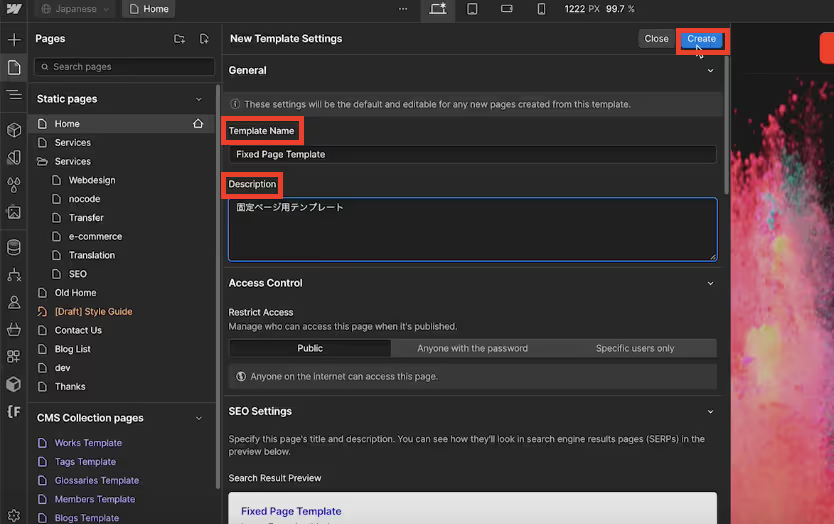
Enter the template name and a description, such as its purpose, in the "Description" field directly below. Once you've finished, click "Create."
*For this example, we will name the template "Fixed Page Template."
3. Build the Structure
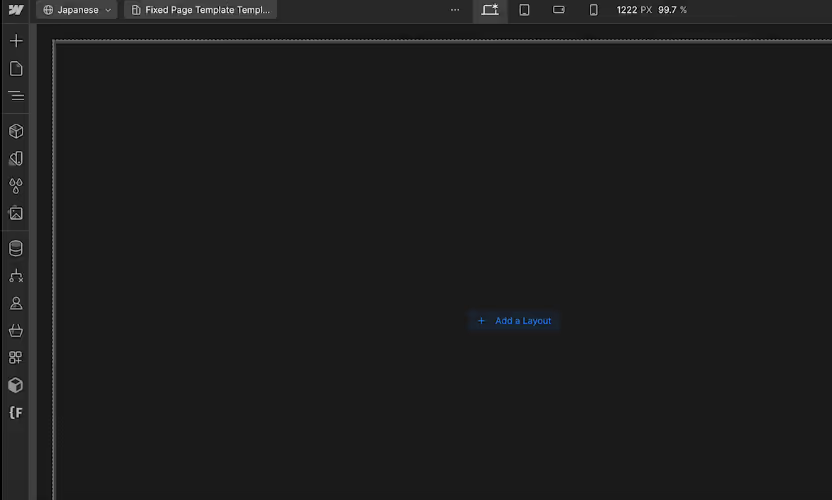
After creating the template name and clicking "Create," an empty page will be generated.

First, let's place the elements that will form the page structure within the body.
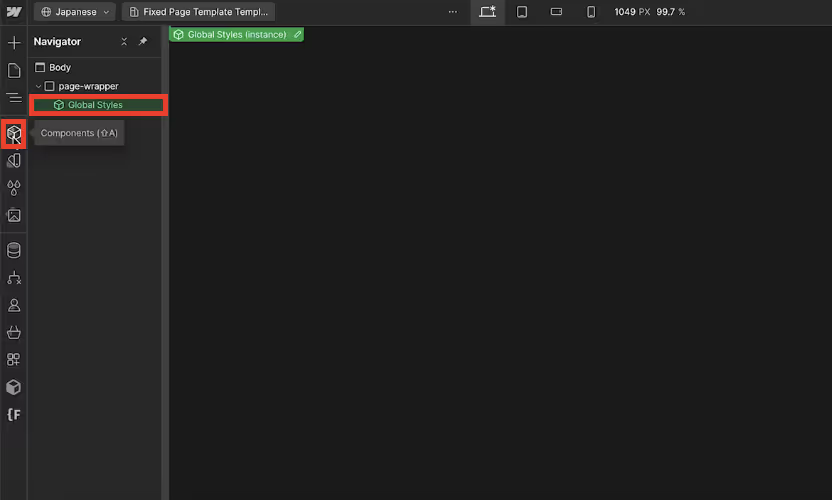
Place each componentized part within the page-wrapper. For common parts, like the green component in the image, it's recommended to componentize them beforehand to make template creation smoother.
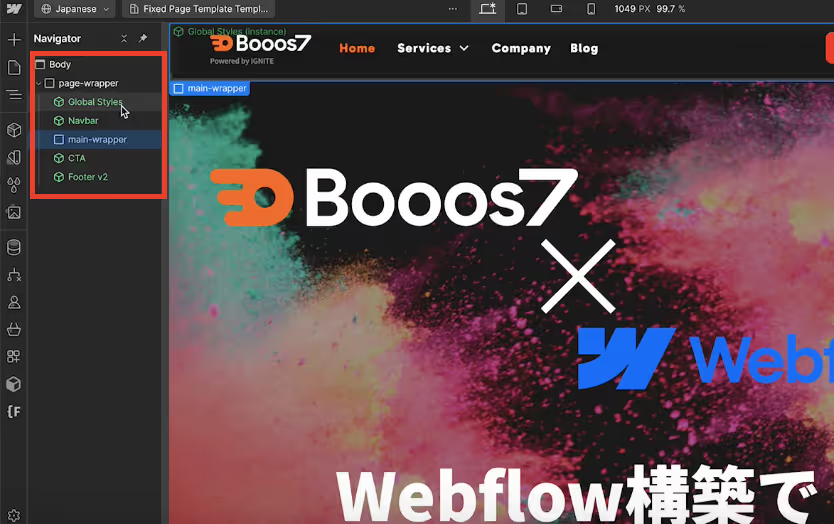
By arranging elements like the page-wrapper, Navbar, and Footer as shown in the image, your template structure will be complete.
Creating Pages Using Page Templates
Based on the page template you've created, follow these steps to create a new page:
1. Create a New Page
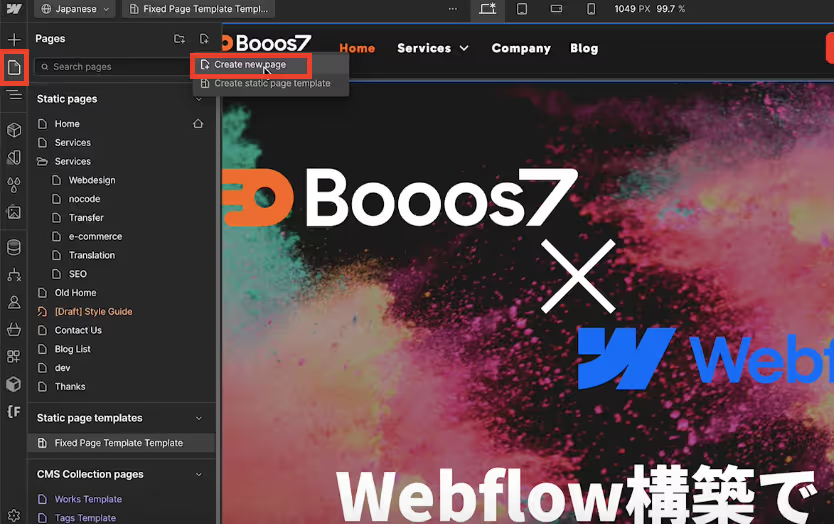
From the "Pages" panel on the left, click "Create New Page."
2. Select a Template
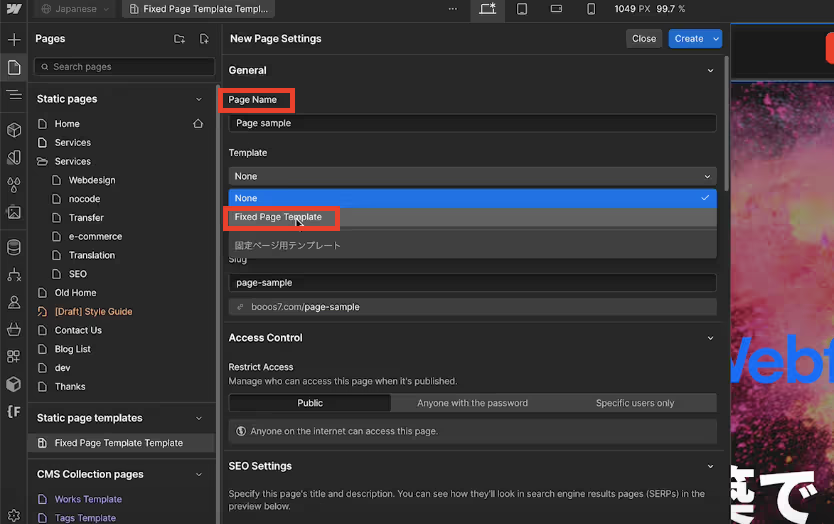
Create a page name, then click the select box under the template section. The "Fixed Page Template" you just created will appear, so select it.
*For this example, we will name the page "Page sample."
The page template will appear as shown below ↓
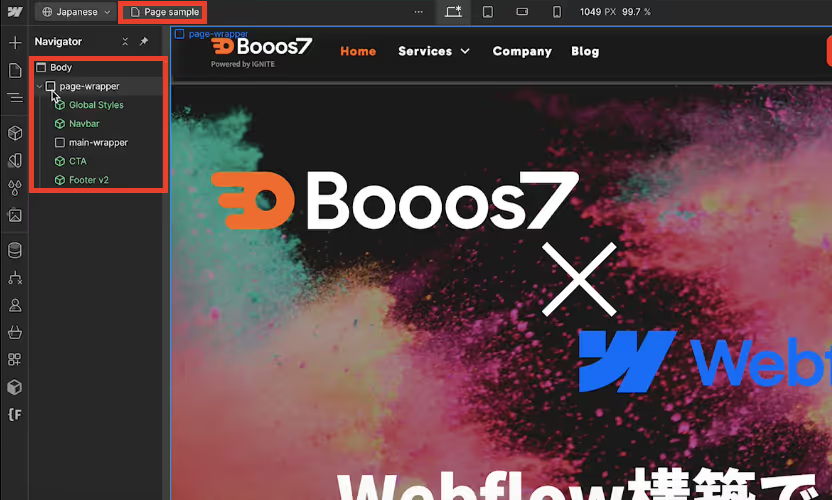
The "Page sample" page has been created, and its structure matches the page template you just made.
3. Create the Page
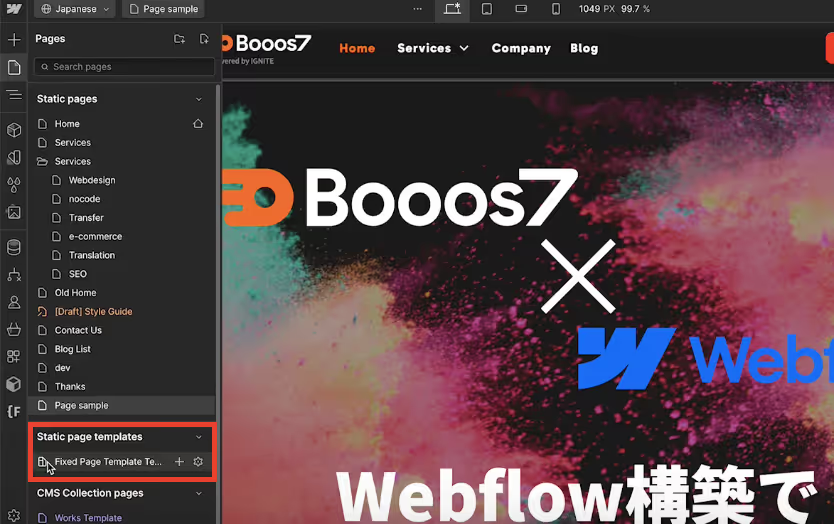
Clicking "Create" will apply the structure of the page template you just created. If you wish to edit the page template, click on the page template within "StaticPageTemplate" from the "Pages" panel on the left to enable editing.
However, please note that editing the template on this screen will not reflect those changes in pages previously created from that template (e.g., "Page sample").
SEO Settings Can Also Be Templated
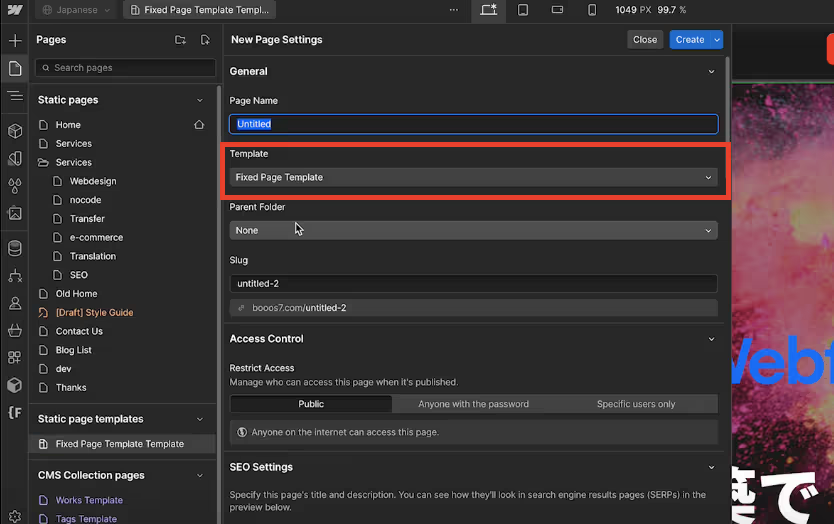
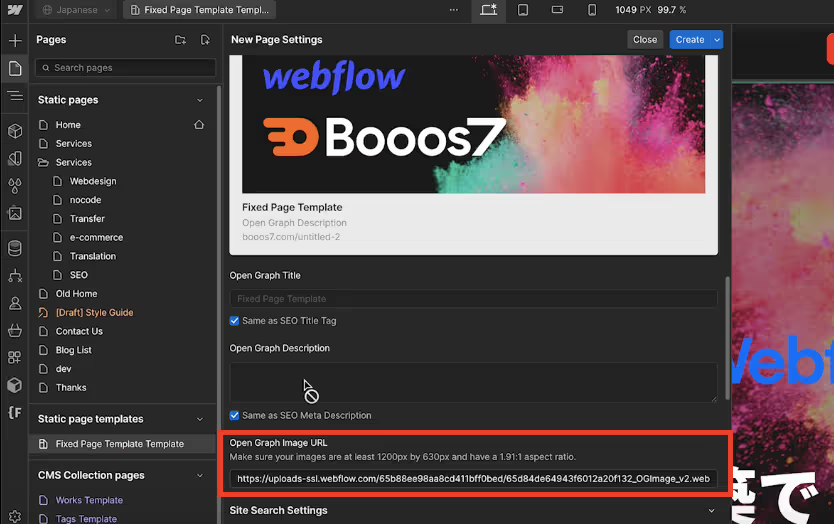
With page templates, you can also template SEO settings. For example, create a new page with the "Open Graph Image URL" already set.
Then, if you set the template item to a page template you've prepared in advance, the SEO information you pre-configured for the "Open Graph Image URL" will be reflected.
Summary
Significantly Reduce Work Time with Page Template Feature
Webflow has added a page template feature in its latest update. By using these page templates, users can significantly streamline page creation while maintaining brand consistency. Since SEO information can also be reflected, there's no need to create it from scratch again. This feature makes page creation easier even for users with limited Webflow technical knowledge, so we encourage you to use it actively.
If you encounter any questions while creating page templates, please contactBooos7.
Booost is a web development service specializing in the no-code tool "Webflow."
We maximize your website's customer acquisition power through three optimizations: design, marketing, and translation.

