

Webflow makes GSAP completely free | Text Animation Implementation Guide

While wanting to implement high-quality animations on websites, I think there are many people who felt that “GSAP has many paid plug-ins and costs money” or “the settings are complicated and the hurdles to start using it are high.”
In April 2025, Webflow made an announcement that completely changed that situation. GSAP (GreenSock Animation Platform), which is a staple JavaScript animation library, has been made completely free, and all users can now use all functions at no additional cost. In this article, I will explain in detail the background and significance of this free version, and how to actually implement text animations using GSAP in WebFlow.
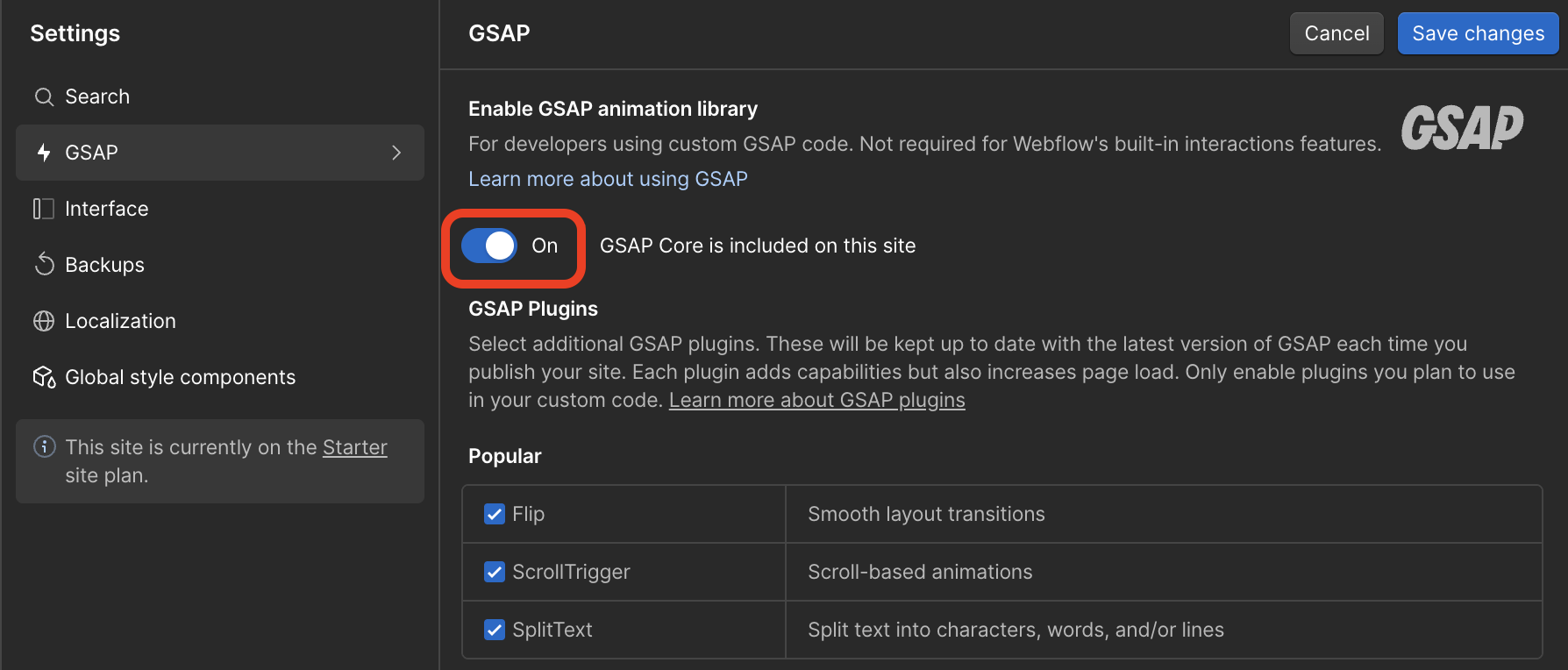
Image: Screenshot Screenshot of the Webflow project settings screen with the GSAP toggle turned on, and plug-ins such as SplitText can be selected
What does making GSAP completely free mean
Until now, only basic functions of GSAP have been free, but advanced plug-ins such as ScrollTrigger, SplitText, DrawSVGPlugin, and MorphSVGPlugin can only be used with a paid membership called “Club GreenSock.” Webflow acquired GSAP in fall 2024 and then announced in April 2025 that they will be offering all of these plug-ins completely free of charge.
There are two major changes due to this change. One is the cost aspect. Anyone, from freelance web designers to web personnel at large companies, can now use advanced animations for any project without worrying about the cost. Commercial use is also covered by a standard license. The other is integration with Webflow. GSAP's core libraries and plug-ins are now hosted directly by WebFlow, and settings to load libraries from outside are no longer required. For advanced effects that combine GSAP with WebFlow's Interactions function,WebFlow Interaction and GSAP Integration GuideSee also.
Additionally, a feature that allows you to preview custom code before publishing has also been added. Since it is possible to check how the animation created with GSAP actually works during the preview stage, the trouble of trial and error is greatly reduced.
Major upgrade to the SplitText plugin
At the same time as this free version, SplitText, which is one of the most popular plug-ins, has been completely rewritten and greatly improved. File sizes have been reduced by 50%, performance has been improved, and accessibility compatible with screen readers has been built in. Furthermore, a masking function has also been added that makes it easy to achieve a “reveal” effect to display text beautifully.
SplitText is a plug-in that can split text into 3 units of characters, words, and lines, and set individual animations for each. Typing effects of one character at a time are possible in character units (Characters), expressions in which words are faded in sequence in word units (Words), and dynamic effects where each line slides in in line units (Lines) are possible.

Image: Screenshot Comparative screenshot or illustration showing the differences between the 3 types of splittext animations in Characters/Words/Lines
How to implement text animation using GSAP in WebFlow
Now, I'll actually explain how to add text animation to a catchphrase using GSAP and SplitText in WebFlow.
Step 1: Activate GSAP and SplitText
Open Webflow's project settings and look for the GSAP section. Switch the “GSAP Core is included on this site” toggle to ON and check SplitText to be used for text animations. Save your changes and you're ready to go. There is no need to load the library from outside, and this is all it takes to use GSAP.
Step 2: Assign classes to the elements to be animated
Select the text element you want to animate and add the class name to the style selector. In this example, we'll use the class name “split”. This class name will be used later in the code, so be sure to give it a name that is easy to understand. If you want to make class management more efficient,Combinations with CSS function variablesis also an effective method.
Step 3: Add JavaScript code to Page Settings
Open the settings for the page you want to add an animation to and click “Before </body> Paste the following code into the “tag” field. Webflow already has GSAP built in, so there's no need to add a separate CDN script tag.
<script>
  document.addEventListener("DOMContentLoaded", () => {
    gsap.registerPlugin(SplitText);

    // フォント読み込み完了を待つとズレが出にくい
    document.fonts.ready.then(() => {
      const split = SplitText.create(".split", { type: "words" });

      gsap.from(split.words, {
        duration: 1,
        y: 150,
        autoAlpha: 0,
        stagger: 0.15,
        ease: "power3.out" // 動きが自然になる
      });
    });
  });
</script>
This code.splitThe text of elements with classes is split word by word and animated from transparent to opaque while moving 150px up from the bottom.Stagger: 0.15This creates the effect that words are displayed sequentially with a 0.15 second delay.

Image: Screenshot Screenshot of JavaScript code pasted into the Before Body Tag input field in Webflow's Page Settings
How to customize animations
Once the basic animation works, let's refine the expression by adjusting each property. Here are the main customization points.
Durationis the total time (seconds) of the animation, and if you increase the number, it will move slowly, and if you decrease it, it will move quickly.yis the vertical travel distance (px), and if negative, it will move from top to bottom.Staggeris the start delay time (seconds) for each element, and the closer to 0, they move all at once, and the larger they are, the more continuous the animation.EaseYou can change the acceleration/deceleration curve by specifying.Power2.outIt has the effect of smoothly slowing down.
If you want to use multiple splitText animations on a single page, use the variable name (SplitYou can handle this by changing the part of) and the class name to a different name and writing multiple codes.
summary
Making GSAP completely free with Webflow is a revolutionary step in creating an environment where anyone can easily implement high-quality web animations. Even if you haven't been able to get your hands on it due to costs or technical hurdles until now, I recommend using this as an opportunity to try out animation expression using GSAP.
Text animations using SplitText drastically change the overall impression of the site, even if you just add movement to the first view catchphrase. In parallel with the animationhover effectsIf you also set it, the interactive experience will be richer. Please try incorporating animations into your Webflow site while referring to the steps in this article. Booost also provides support for site creation and implementation of effects using Webflow. Please feel free to contact us.
Booost is a web development service specializing in the no-code tool "Webflow."
We maximize your website's customer acquisition power through three optimizations: design, marketing, and translation.

