
Webflow DNS Settings Update Becomes Mandatory—What Changes with the Cloudflare Migration?

Webflow has announced that all custom domains must update their DNS settings by November 3, 2025. This is due to a large-scale infrastructure change, migrating secure network connections to Cloudflare. This change is not merely a technical update but a crucial upgrade directly impacting site performance, security, and stability.
However, many Webflow users are asking questions like, "Will my site go down if I don't update immediately?" or "Should I choose automatic migration or manual update?" Based on our practical experience, we've compiled the key importance of DNS updates and practical considerations.
Conclusion: If DNS settings are not updated by November 3, 2025, there is a high probability of site display issues or SSL certificate renewal errors. The automatic migration feature allows for easy resolution if you have access to your DNS provider.
Reason: As Webflow migrates to Cloudflare, old DNS records will no longer properly connect with the new infrastructure. Connection instability will occur, especially if A records or CNAME records are not updated.
Solution: Update all domains at once using the "Update All Domains" button in the Webflow dashboard, or manually update each domain. Access to your DNS provider is required.
Why is a DNS Update Necessary?
Webflow has decided to migrate secure network connections to Cloudflare to make its hosted site infrastructure more robust and secure. This migration is expected to bring the following benefits:
- Improved Performance: Faster access speeds
- Increased Uptime: A more stable operating environment
- Enhanced Security: Stronger protection against cybersecurity threats
However, this migration necessitates updating DNS settings for custom domains. If not updated, you will continue to use old DNS records, as your site won't switch to Webflow's new hosting environment or recommended settings.
Consequences of Not Updating
If you do not perform the automatic migration, you may experience the following:
DNS settings remain outdated
You will continue to use old DNS records, as your site won't switch to Webflow's new hosting environment or recommended settings.
Potential for unstable site connection
Especially if A records or CNAME records are not updated, a proper connection to Webflow servers cannot be established, risking the following issues:
- Site not displaying
- SSL certificate renewal errors
- Inaccessibility for some users
Future lack of support
If Webflow discontinues support for old DNS settings, domains that have not migrated may become unreachable.
While your site won't immediately "crash" catastrophically, neglecting this update is highly likely to cause display issues and SSL renewal errors. For long-term stable operation, performing the automatic migration is safer.
Update Methods: Automatic Migration vs. Manual Update
Webflow offers two methods to make DNS updates as easy as possible:
Automatic Migration (Recommended)
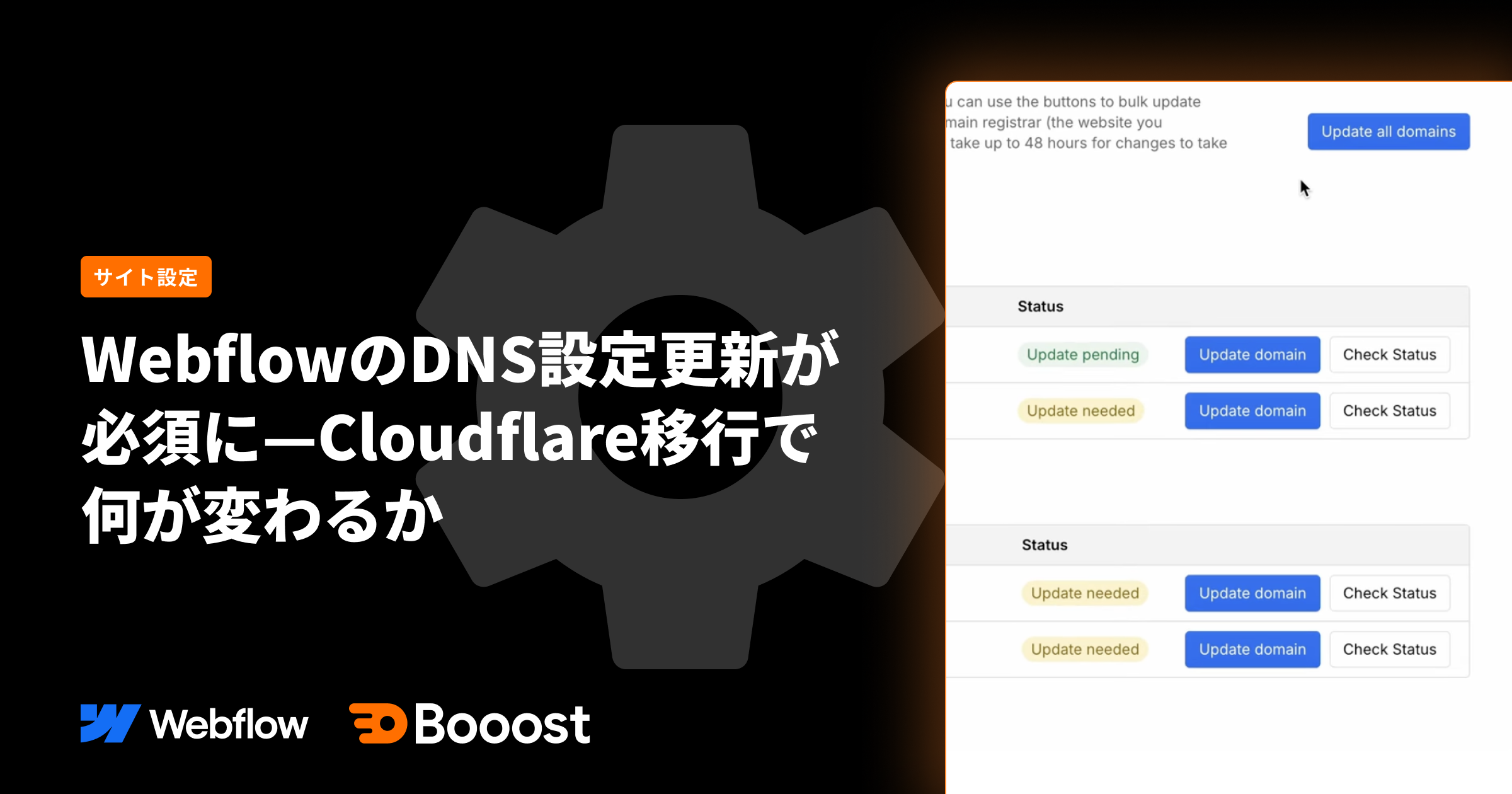
When you log into your Webflow dashboard, notifications will appear in multiple places. Click the "Review All Domains" button from your workspace dashboard to see a list of domains that require updating.
Clicking the "Update All Domains" button allows you to update all domain settings at once.
Once you select the domains, the update is complete. If you have access to each domain's DNS provider account, this automatic migration makes it easy to handle.
Manual Update
If automatic migration is not possible, or if you only want to update specific domains, you will need to manually update your DNS records.
Manual Update Steps
Access the administrative console of the registrar where you purchased your domain and open the DNS settings. Then, update the CNAME record to "cdn.webflow.com" or the A record to the IP address provided by Webflow (e.g., 000.000.000.0).
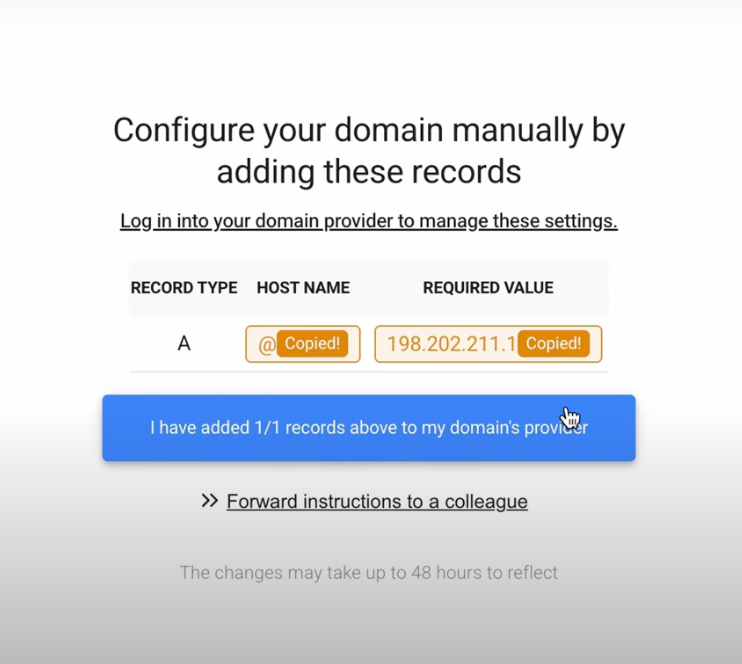
After the change, the status of each domain will change to "update pending."
For DNS changes to propagate,it may take up to 48 hours.After making the settings, please wait some time before checking the propagation status. You can check the propagation status on the"Review All Domains" page to see the status of each domain..
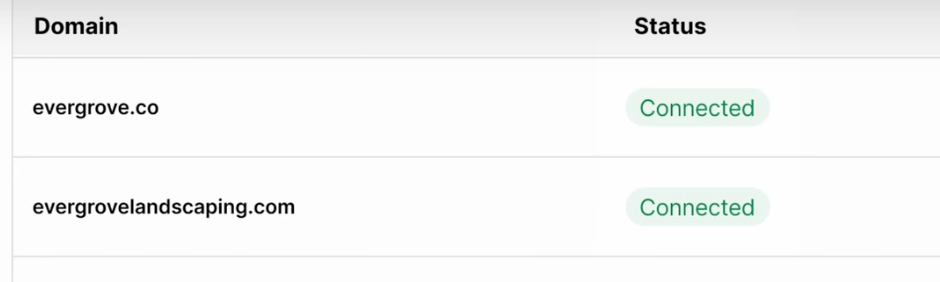
Once the changes have propagated, the status will change to "connected." If you have multiple workspaces, you will need to perform this process for each workspace.
Practical Case Studies
In practical operation, you may encounter various challenges, such as issues with access permissions to DNS providers or managing multiple client sites.
If Hosted with GoDaddy
If your domain is registered with GoDaddy, Webflow cannot directly update the DNS settings, so one of the following actions is required:
- Have the GoDaddy account login information (ID/password) shared with you.
- Have the client add the following DNS records:
- Record type: A
- Host name: @
- Value: 000.000.000.0
For GoDaddy, automatic updates from Webflow are not possible, so manual intervention is required.
Managing Multiple Sites
If you manage multiple client sites, it's efficient to categorize and proceed as follows:
- Completed: Sites where automatic updates have been completed by Webflow.
- Cannot be updated: Sites where you lack access permissions to the DNS provider (e.g., when the client manages it on GoDaddy).
- Requires action: Sites where you have access permissions to the DNS provider but have not yet updated.
Handling Unpublished Sites
If a site is not published or the domain is no longer in use, you can skip the update. However, if you plan to publish it in the future, it is recommended to update it beforehand.
If the Latest DNS Settings Are Not Displayed
For some sites, the latest DNS settings may not be displayed. This could be because the settings are already up-to-date, meaning no update is required. Please check if the status is "connected."
Frequently Asked Questions (FAQ)
What happens if I don't update?
While your site won't immediately "crash" catastrophically, neglecting this update is highly likely to cause display issues and SSL renewal errors. For long-term stable operation, performing the automatic migration is safer.
Should I choose automatic migration or manual update?
If you have access to your DNS provider, automatic migration is the easiest option. For providers like GoDaddy, where Webflow cannot directly update, manual updates are required.
How long does it take for DNS changes to propagate?
DNS changes can take up to 48 hours to propagate, but usually reflect within a few hours. You can check the status of each domain on the "Review All Domains" page.
What if I have multiple workspaces?
You will need to perform this process individually for each workspace. Updating one workspace will not update domains in other workspaces.
Summary
Updating Webflow's DNS settings is not just a technical task; it's a crucial upgrade to maintain site performance, security, and stability. By taking action before November 3, 2025, you will gain the following benefits:
- Automatic updates to Webflow's recommended DNS settings make it easier to keep up with maintenance and future specification changes.
- Reduced SSL and redirect issues lead to more stable operation.
- Eliminates the hassle of manually entering the DNS management screen to make corrections.
If you have access to your DNS provider, you can easily handle this using the "Update All Domains" button in the Webflow dashboard. For providers like GoDaddy, where automatic updates are not possible, manual intervention is required, but the setup steps are clear.
For long-term stable operation, performing the automatic migration is safer. If you haven't taken action yet, we recommend doing so promptly.
Booost is a web development service specializing in the no-code tool "Webflow."
We maximize your website's customer acquisition power through three optimizations: design, marketing, and translation.

