
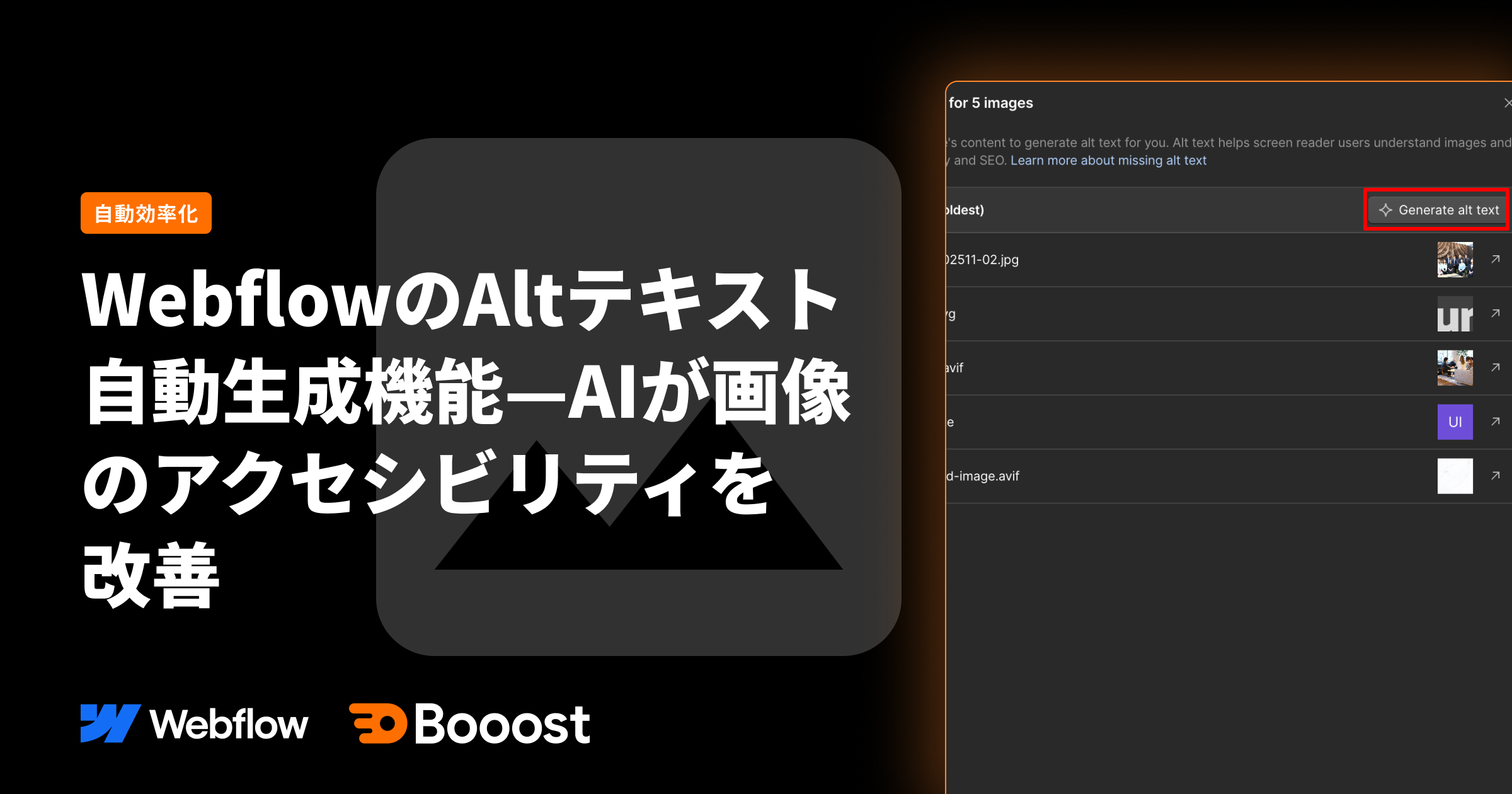
Webflow's Alt Text Auto-Generation Feature — AI Improves Image Accessibility

A new feature has been added to Webflow that automates the process of setting Alt text for images using AI. On gallery pages and other pages, if an image doesn't have Alt text set, simply click the "Generate Alt Text" button, and the AI will automatically generate appropriate Alt text for it.
This article explains how to use this feature and its effects on improving accessibility.
What is Alt Text—and Why is it Important?
Alt text (alternative text) is text that describes the content of an image for users when the image cannot be displayed or for those using screen readers. It is written as the `alt` attribute of the HTML `<img>` tag and is a crucial element for web accessibility.
Key Roles of Alt Text
To effectively use Alt text, let's first look at its three main roles listed below.
Improved Accessibility
When visually impaired users browse a website using a screen reader, Alt text conveys the image's content audibly. Without appropriate Alt text, they cannot understand what the image represents, and the meaning of the content is lost.
According to the World Health Organization (WHO), approximately 2.2 billion people worldwide have a visual impairment, making web accessibility not just a consideration but an essential feature for many users.
SEO Improvement
Search engines cannot directly understand the visual content of images. They recognize what an image represents through its Alt text. By setting appropriate Alt text, you can expect the following SEO benefits:
- Higher ranking in image search results
- Improved overall page relevance score
- Increased likelihood of image display in rich snippets
- Accurate understanding of page content by crawlers
Enhanced User Experience
Even when images fail to load, Alt text allows users to understand the content's meaning. This is particularly useful in situations such as:
- Environments with slow internet connections
- When image files are corrupted
- When browser image display settings are turned off
- When content blockers are enabled
Alt Text Quality Standards
Appropriate Alt text must meet the following criteria:
- Clearly describes the image content
- Provides a description relevant to the context
- Uses concise and easy-to-understand language
- Does not include unnecessary words like "image" or "photo"
- Uses an empty Alt attribute for decorative images
How to Use Webflow's Auto-Generation Feature—A Detailed Guide
To automatically generate Alt text in Webflow, follow these steps. This feature is available from both the Webflow Designer and the Assets panel.
Step 1: Identify images without Alt text
In the Webflow Designer, when you select an image element on a page, its settings will appear in the right-hand panel. Images without Alt text will display the following:
- A warning indicating "Alt text is missing"
- A red or yellow alert mark in the checklist
- A visual indicator around the image element
Images with these indicators are candidates for auto-generation. If you have multiple images, such as on a gallery page, you will need to review and set them individually for each image.
Step 2: Click "Generate Alt Text"
Clicking the "Generate Alt Text" button for the selected image will prompt the AI to analyze the image content and automatically generate appropriate Alt text.
AI Analysis Process
Webflow uses image recognition AI to analyze the following elements:
- Objects within the image (people, items, buildings, etc.)
- Image composition and arrangement
- Colors and tones
- Text within the image (OCR functionality)
- Image context (placement on the page and surrounding text)
This analysis completes in a few seconds, and the results are displayed in real-time.
Step 3: Review the generated Alt text
The AI-generated Alt text will be displayed for your review. The generated text includes the following elements:
- Description of the image's main elements
- Information about the image's composition and arrangement
- Number of people and their actions within the image
- Description of the environment and background
Key Review Points
When reviewing the generated Alt text, check the following points:
- Does it accurately describe the image content?
- Is it appropriate for the page's context?
- Does it avoid unnecessary information?
- Is it grammatically correct?
- Does it align with your brand and message?
While it may sometimes be generated in English, you can use a translation feature to check the Japanese content. Additionally, the generated text is editable, so you can make corrections as needed.
Step 4: Click "Accept" to apply
If there are no issues with the generated Alt text, click "Accept" to apply it. This action will result in the following changes:
- The text will be set as the image's Alt attribute.
- The checklist warning will be resolved and change to "No issues."
- The generated Alt text will be reflected in the HTML output upon publishing.
- The same text will also be saved in the Assets panel.
Editing and Regeneration
Even after accepting, the Alt text remains editable. If you're not satisfied, you can click "Generate Alt Text" again to produce an alternative description.
Utilizing the Checklist
Webflow's checklist feature displays a list of accessibility and SEO issues on your page. Images without Alt text are automatically shown in this checklist, offering the following benefits:
- Prevents missed settings
- Allows for bulk review and correction
- Helps understand the overall accessibility level of the project
- Facilitates easy sharing with clients and team members
The checklist is also extremely useful for final verification before publishing.
Supports Both English and Japanese—Utilizing for Multilingual Sites
This feature works for both English and Japanese websites. Webflow generates Alt text in the appropriate language based on the page's language settings and content context.
Characteristics of English Alt Text
Generation in English tends to be particularly accurate due to the abundance of AI training data. It can include detailed information such as:
- Description of materials and textures
- Information on colors and brightness
- Characteristics of space and composition
- Relationships between objects
Characteristics of Japanese Alt Text
Generation in Japanese has the following characteristics:
- Described in natural Japanese word order
- Particles and conjunctions are used appropriately
- The image's atmosphere and emotions are also conveyed
- Cultural context is taken into account
It efficiently summarizes the content appropriately, making it more effective than manual input. By reviewing the generated content and making minor adjustments as needed, you can set more accurate Alt text.
How to Use for Multilingual Sites
If you operate a multilingual site in Webflow, you need to set appropriate Alt text for each language version.
▼ Language-specific settings
- Generate English Alt text for English pages
- Generate Japanese Alt text for Japanese pages
- Run "Generate Alt Text" individually for each language version
▼ Translation Consistency
When using the same image across multiple language pages, generating Alt text in each language helps maintain translation consistency. This saves the effort of manual translation and ensures native expressions are used for each language.
Improved Workflow Efficiency—Comparison with Traditional Methods
Previously, setting Alt text for images required manual input from the Assets panel. This was a very time-consuming task for pages with many images. Let's see how much this new feature streamlines this process.
Workflow
Time and Cost
→ Approximately 90% time reduction possible!
Other Challenges
Example: Gallery Page (50 images)
Even More Convenient with Assets Panel Integration
AI-generated Alt text is automatically saved to the Assets panel.
▼ Benefits of Centralized Management
- Image settings are centrally managed in the Assets panel.
- When the same image is used on multiple pages, the Alt text is also carried over.
- Maintain consistent descriptions across the entire project.
▼ Smooth Reuse
- Once generated, Alt text can be used on other pages.
- Even when replacing an image, you can choose whether to carry over the Alt text.
- Automatically applied even for images bound to CMS items.
This feature significantly streamlines the process of setting Alt text for images, simultaneously improving accessibility and SEO.
Best Practices for Implementation — Prevent Bugs and Maximize Accuracy
Here are best practices to maximize the use of the Alt text auto-generation feature.
Review After Generation is Essential
While AI-generated Alt text is highly accurate, we recommend always reviewing it. Pay particular attention to the following points.
1. Contextual Relevance
The required Alt text varies depending on how the image is used.
- Recruitment page → Working atmosphere and team dynamics are important.
- Service introduction → Product and feature descriptions are important.
Since the appropriate description can change depending on the page, even for the same image, ensure the generated result aligns with the page's intent.
2. Consistency with Brand Messaging
Check if the generated Alt text aligns with your brand's tone and message.
- Does it match the brand's phrasing?
- Is the tone (casual/formal) appropriate?
- Is it overly descriptive or impersonal?
Make minor adjustments as needed.
3. SEO Keyword Optimization
Check if the page's target keywords are naturally included in the Alt text, and add them if necessary. However, avoid keyword stuffing.
What to Do When Editing is Needed
If you need to edit the generated Alt text, keep the following points in mind.
1. Enhance Specificity
If the AI-generated text is too general, add more specific information. For example, instead of "meeting room," use a phrase like "spacious meeting room with natural light."
2. Remove Unnecessary Information
If the AI generates an overly detailed description, narrow it down to only the essential elements. Conciseness is key for Alt text.
3. Refine for Natural Language
In the case of Japanese, AI-generated text can sometimes sound a bit unnatural. In such instances, refine it to more natural Japanese.
Utilizing with CMS Collections
The Alt text auto-generation feature is particularly useful when managing images in Webflow's CMS Collections.
▼ Seamless Integration with CMS Fields
- Automatically generate Alt text for each image when using different images per CMS item.
- Dynamic Alt text can also be set by linking with CMS text fields.
- Once set on a template page, it applies to all CMS items.
▼ Efficiently Handle Large Numbers of CMS Items with Batch Processing
- Generate Alt text for multiple CMS items in bulk.
- Even when adding CMS items later, you can set them up using the same procedure.
Troubleshooting
Here's how to troubleshoot issues that may arise when using the Alt text auto-generation feature.
Inaccurate Generated Alt Text
If the AI-generated Alt text doesn't match the image content, take the following steps.
▼ Check Image Quality
If the image is low-resolution or blurry, the AI may not be able to recognize it accurately. Consider replacing it with a higher-quality image.
▼ Try Regenerating
By rejecting it once and then clicking "Generate Alt Text" again, a different description may be generated.
▼ Manual Correction
If the AI cannot recognize it accurately, manually correct the generated text.
Low Japanese Generation Accuracy
If the Alt text generation accuracy in Japanese is low, take the following steps.
▼ Check Page Language Settings
Check if the language is correctly set in Webflow's page settings. If the language setting is English, the Japanese generation accuracy may be lower.
▼ Generate in English, Then Translate
If Japanese generation accuracy is low, another option is to generate the text in English first, then use a translation tool to convert it to Japanese.
Benefits of Using AI-Generated Alt Text
Webflow's Alt text auto-generation feature is a tool that enhances image accessibility. By automatically generating appropriate Alt text with AI, you gain the following benefits:
Improved Accessibility
Visually impaired users can understand image content.Approximately 2.2 billion people worldwide have visual impairments, making proper Alt text essential for many users.
SEO Improvement
Search engines can accurately recognize image content, leading to the following expected effects:
- In image search,improved ranking.
- Overall pagerelevance score improvement.
Increased Workflow Efficiency
Manual input is no longer required, significantly reducing time. For a page with 50 images, compared to traditional methods,approximately 90% time reduction is possible.
Multilingual Support
It supports both English and Japanese, making it usable for multilingual sites.Natural expressionsare generated in each language, saving translation effort.
Summary
Webflow is actively developing AI features, and further additions are expected in the future. The Alt text auto-generation feature is likely just the first step.
By remembering and utilizing this feature in your actual projects, you can efficiently improve the accessibility and SEO of your Webflow site. It's particularly effective for pages with many images, so we encourage you to actively use it.
Leverage this feature to boost productivity and build websites that are more accessible to a wider range of users.
Booost is a web development service specializing in the no-code tool "Webflow."
We maximize your website's customer acquisition power through three optimizations: design, marketing, and translation.

