
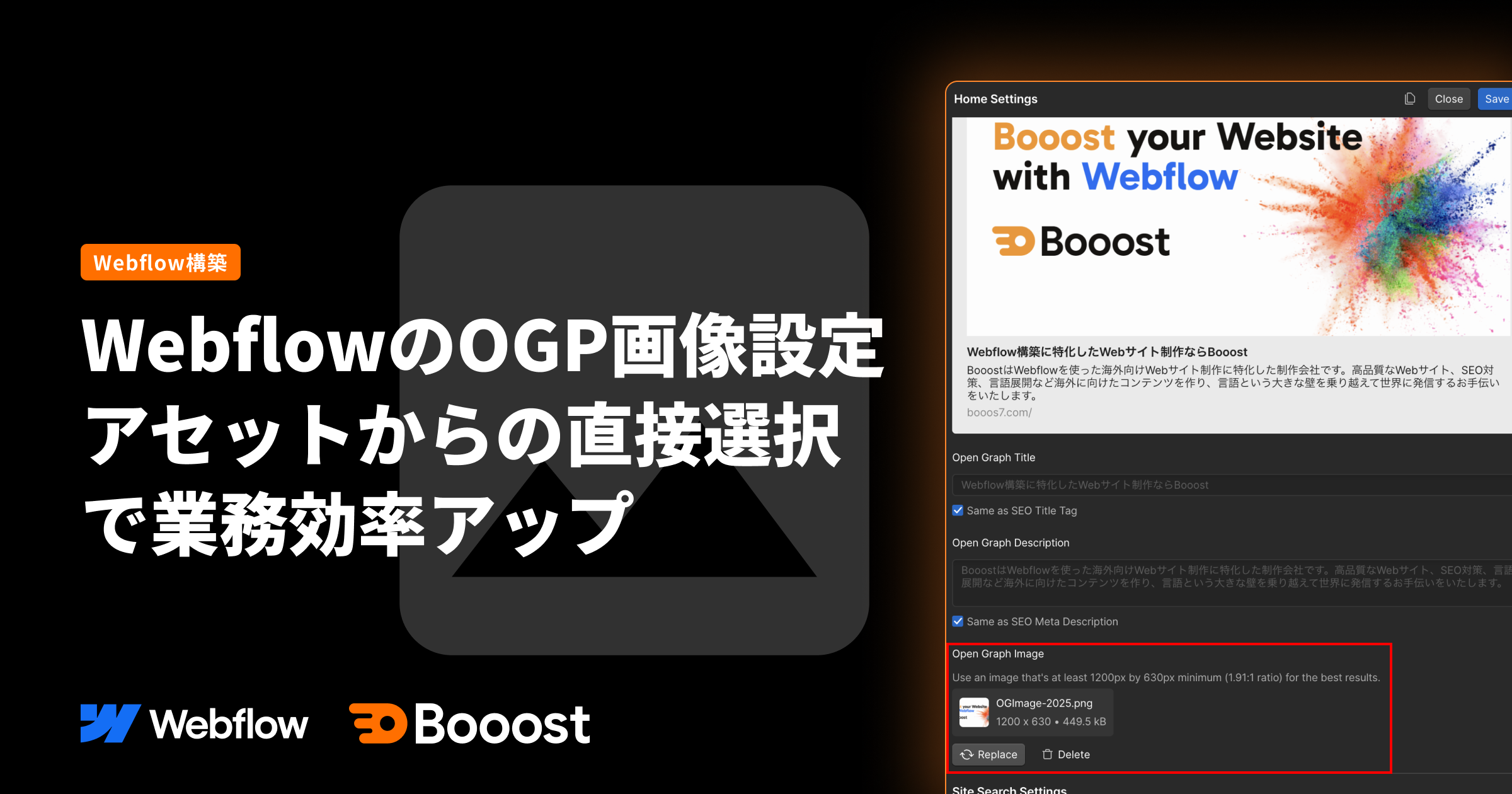
Webflow OGP Image Settings | Boost Operational Efficiency with Direct Asset Selection

The long-awaited Webflow update has finally arrived, bringing improvements to the OGP image setting method.
Previously, OGP settings required manually copying and pasting image URLs. With this update, you can now select images directly from the asset library, which shortens work time and significantly reduces the risk of human error.
In this article, we'll review the previous challenges and clearly explain the details of the new feature, how to use it, and its benefits.
What are OGP Images?
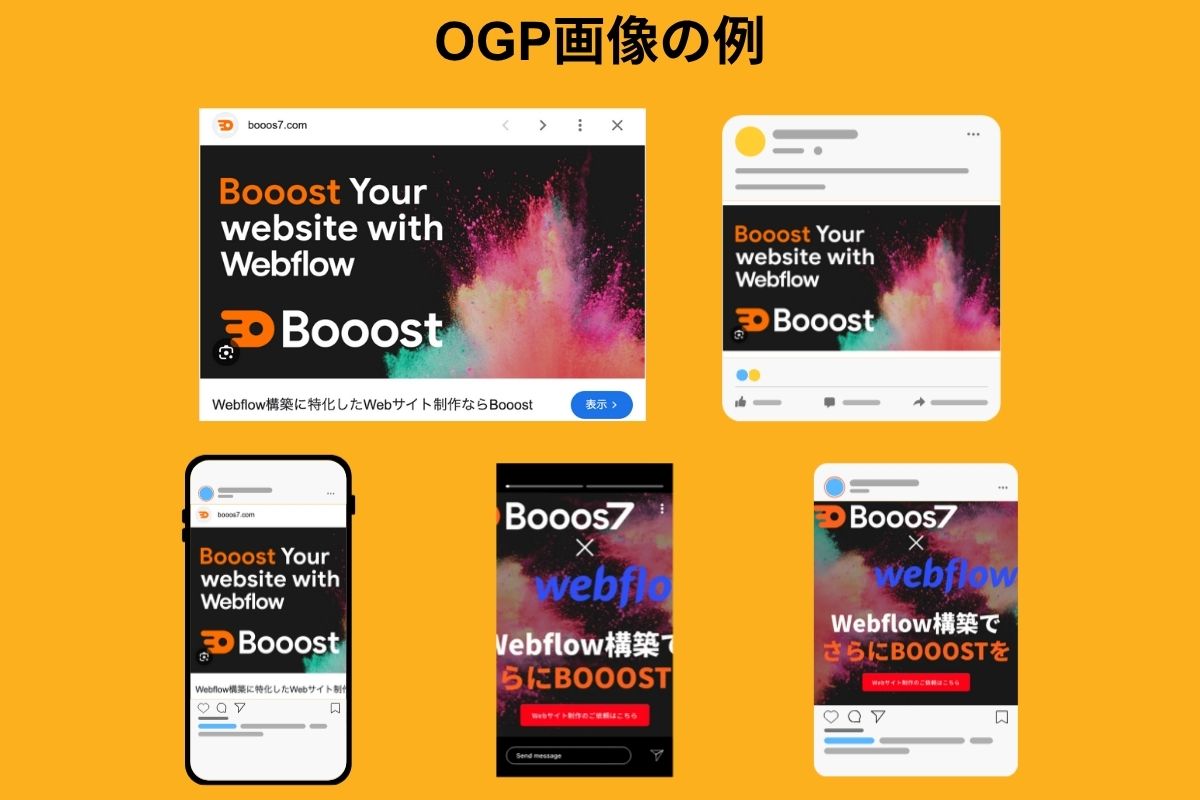
OGP images are the thumbnail images displayed when a web page is shared on social media. They appear alongside the title and description, and are crucial visual elements that influence the page's first impression.
Properly setting attractive OGP images can improve click-through rates and virality on social media, positively impacting web traffic generation.
Previous OGP Image Settings and Their Challenges
To understand the value of this update, let's review the previous setting method and its problems.
Traditional Setup Procedure
The previous setup procedure, while simple, required several steps.
- Upload image to asset library
- Copy image URL
- Paste into the "Open Graph Image URL" field in page settings
Three Main Challenges
This series of tasks had often overlooked challenges.
Time-consuming routine work
Although a simple operation, repeatedly finding, copying, and pasting URLs is subtly time-consuming.
Management becomes complex with many pages
For sites with dozens to hundreds of pages, image management becomes complicated and often leads to errors.
Human errors such as incorrect pasting
Mistakes like accidentally selecting images with similar names or pasting URLs with missing parts are prone to occur, affecting website quality.
[New Feature] Now you can select OGP images directly from assets!
With this update, you can now select OGP images directly from the asset library, eliminating the need for traditional URL copy-pasting.
Clicking the newly added "Select Image" button in the page settings displays the asset library, allowing you to complete the setup by simply visually selecting the desired image.
Especially for sites with many pages or those that are frequently updated, this improvement will significantly reduce the operational burden.
New OGP Image Setting Procedure
The actual operation is very simple, and anyone can set it up quickly by following these steps.
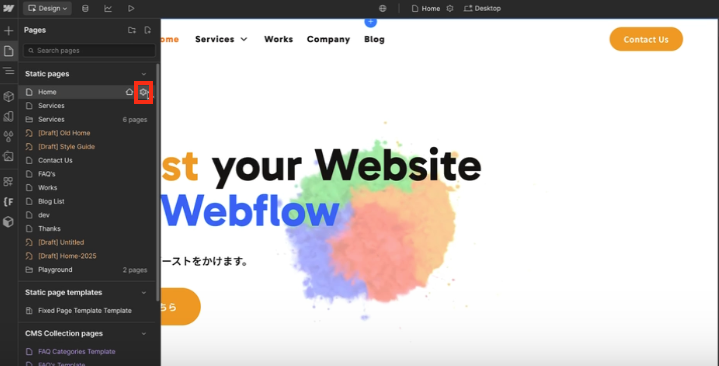
1. Open "Page Settings (gear icon)" for the target page
2. Scroll to "Open Graph (OG) Settings"
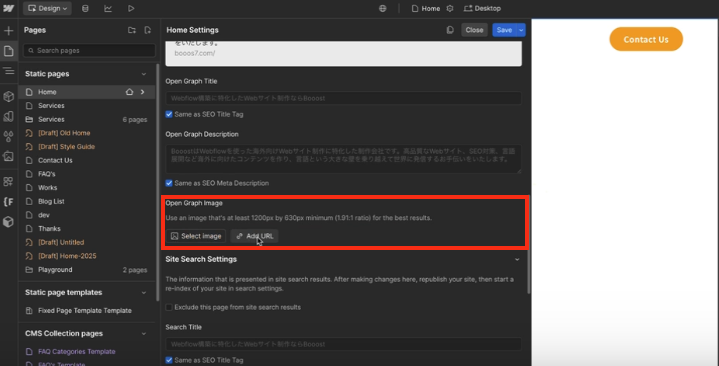
3. Click the "Select Image" button in the "Open Graph Image" section
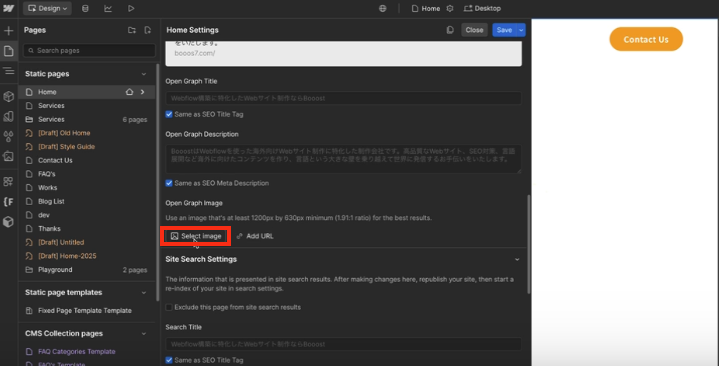
4. Select an image from the asset library and click "Add Image"
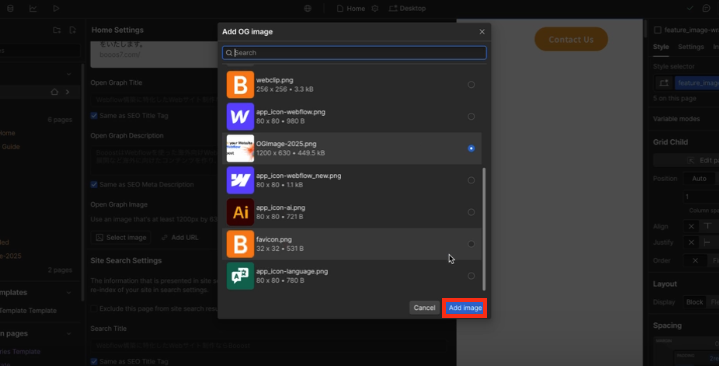
5. If the selected image is displayed in the preview, the setup is complete. Don't forget to click the "Save" button!
Three Major Benefits of the Update
OGP image settings bring three major benefits that improve production quality and efficiency.
Reduced Work Time
The hassle of copy-pasting is gone, and OGP images can now be set with just a few clicks. This will significantly save time in daily operations.
Prevention of Human Error
The effort of searching for images and managing URLs is eliminated, preventing input errors and incorrect pasting. Since you simply select directly from assets, anyone can work easily and accurately.
Improved Operational Efficiency through Centralized Management
OGP images can now be centrally managed as assets, increasing their reusability. This also contributes to unifying brand image, offering significant management benefits.
[Note] Supported Image Formats
While OGP image settings are a very convenient new feature, there are currently limitations on supported image formats.
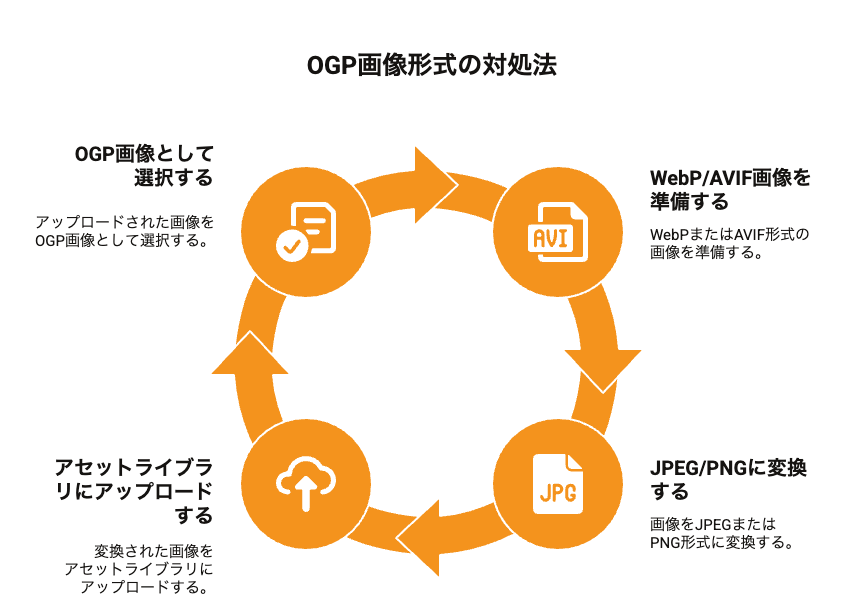
- Selectable image formats: JPEG, PNG
- Unsupported formats: Next-gen image formats like WebP, AVIF (these will not appear in the asset list)
Workaround
If you want to use WebP or AVIF images for OGP, you will need to convert them to JPEG or PNG and re-upload them. Let's hope for support in future updates.
Summary
OGP image settings may seem like a small change, but it's an update that will significantly transform daily work.
- No URL needed, just visually select the image
- Shortens work time and prevents errors
- Easier to manage, improves site quality
This is truly an improvement that addresses a pain point. It's an unmissable update for everyone using Webflow.
Please take advantage of this new feature to achieve more comfortable and efficient web operations.
Booost is a web development service specializing in the no-code tool "Webflow."
We maximize your website's customer acquisition power through three optimizations: design, marketing, and translation.

